Fluids
What is Fluids?
Fluids is the master list of fluid types that can be associated with a recipe or product, such as for fluid restriction or fluid tracking purposes. Each Fluid entry can optionally be marked as quantifiable, allowing minimum and maximum value rules to be defined by Meal Period.
Navigate to Fluids
Click on Configuration on the main navigation menu. Locate Master and click on it.
A new screen appears which shows the list of all the core master tables. Locate the one which says Fluids and click on it.
This will open a screen where you can see all of the active and inactive Fluids which are set up for your company, along with their respective Fluid Code, Quantifiable status, Meal Period, Account, and Status. Green indicates the Fluid is active.
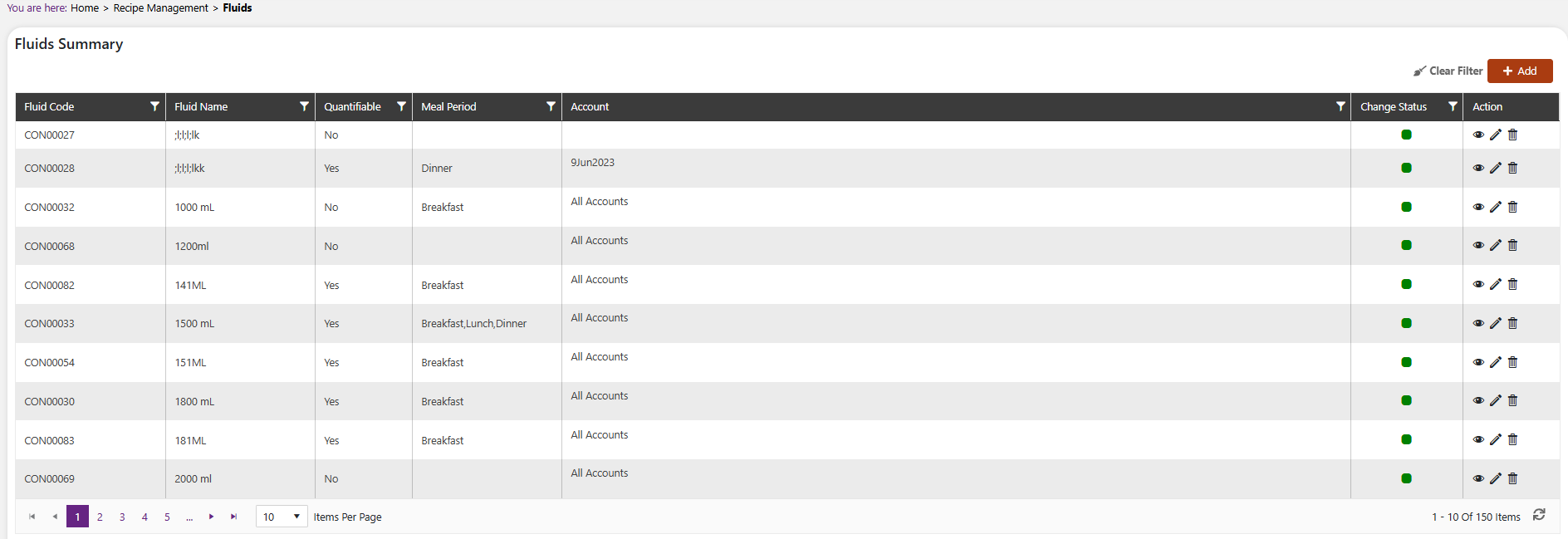
Use the View, Edit, and Delete icons in the Action column to view, modify, or remove a Fluid record.
Add a new Fluid
Click the + Add button on the top right side of the screen.
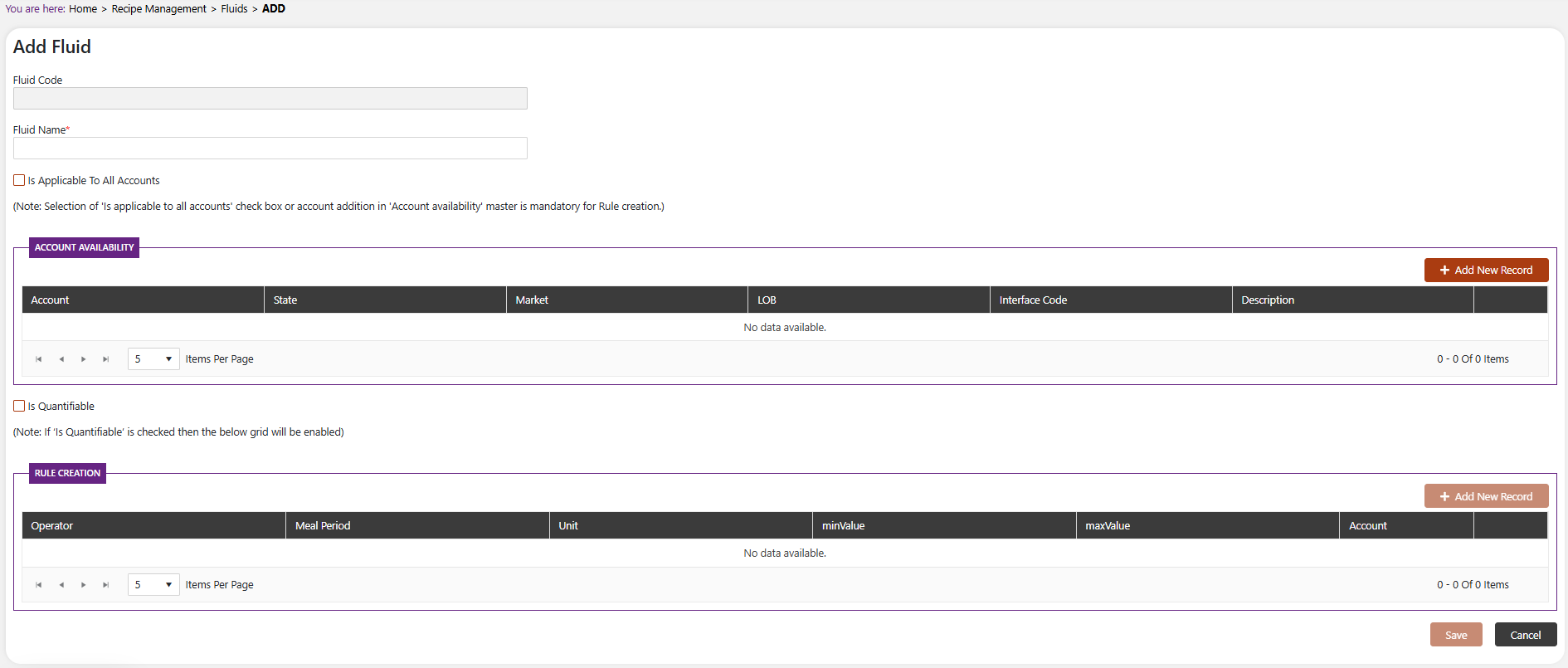
The system will open a popup screen in which you can fill in the following fields:
:::tip Note Mandatory fields are indicated by the * next to the name :::
- Fluid Code: This is automatically generated by the system.
- Fluid Name*: Provide the name of the Fluid.
- Is Applicable To All Accounts: Check this box if the Fluid should be available to all accounts.
NoteSelection of the 'Is Applicable to All Accounts' checkbox, or addition of an account in the Account Availability section, is mandatory for Rule creation.
If the Fluid is not applicable to all accounts, click the + Add button within the Account Availability section to specify the Account, State, Market, LOB, Interface Code, and Description for which this Fluid should be available.
Is Quantifiable: Check this box to enable the Rule Creation grid below.
NoteIf 'Is Quantifiable' is checked then the Rule Creation grid will be enabled.
Within the Rule Creation section, click + Add New Record to define a rule, specifying the Operator, Meal Period, Unit, minValue, maxValue, and Account for this Fluid.
Click the Save button to save this Fluid, or click Cancel to discard your changes.
Modify or remove Fluids
Click on the pencil icon next to the Fluid that you would like to modify.
Click on the trash icon next to the Fluid that you would like to delete.
NoteIf the Fluid is already referenced elsewhere in the system, you may need to remove that reference before it can be deleted.