Menu Bulk Actions
The Menu Bulk Actions screen allows you to add, replace, or delete menu items across multiple menus simultaneously. Use this screen when you need to make the same change across many menus at once without editing each menu individually.
Navigation: Culinary > Menu > Menu Bulk Actions
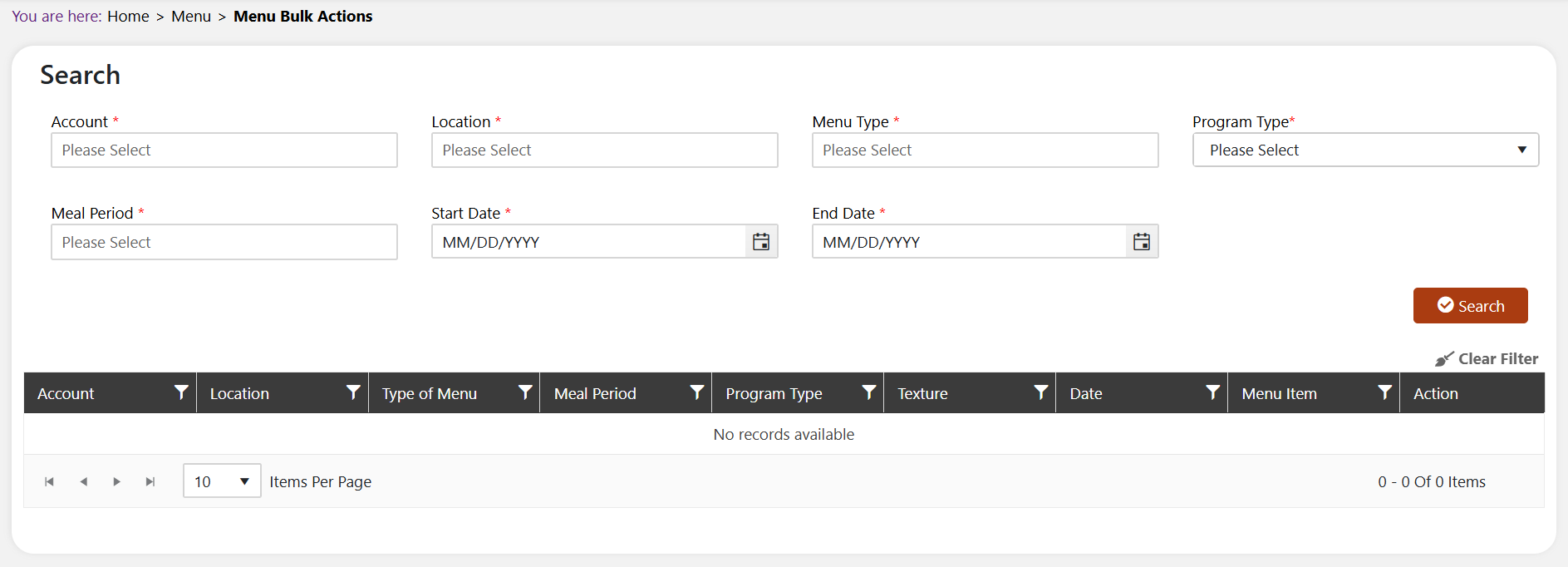
Field Outline
| Field | Type / Values | Description |
|---|---|---|
| Account * | Dropdown, required | The account for the bulk action. |
| Location * | Dropdown, required | The location(s) to include. |
| Menu Type * | Dropdown, required | The menu type to filter. |
| Program Type * | Dropdown, required | The program type to filter. |
| Meal Period * | Dropdown, required | The meal period to filter. |
| Start Date * | Date picker, required | The start date of the date range. |
| End Date * | Date picker, required | The end date of the date range. |
| + icon | Add button | Open the bulk Update Menu Items screen. |
| Clear Filter | Button | Resets all column filters in the results grid. |
Steps
Click Culinary > Menu > Menu Bulk Actions.
Complete all required filter fields (Account, Location, Menu Type, Program Type, Meal Period, Start Date, End Date) and click Search. The results grid will display all menus matching your filter criteria.
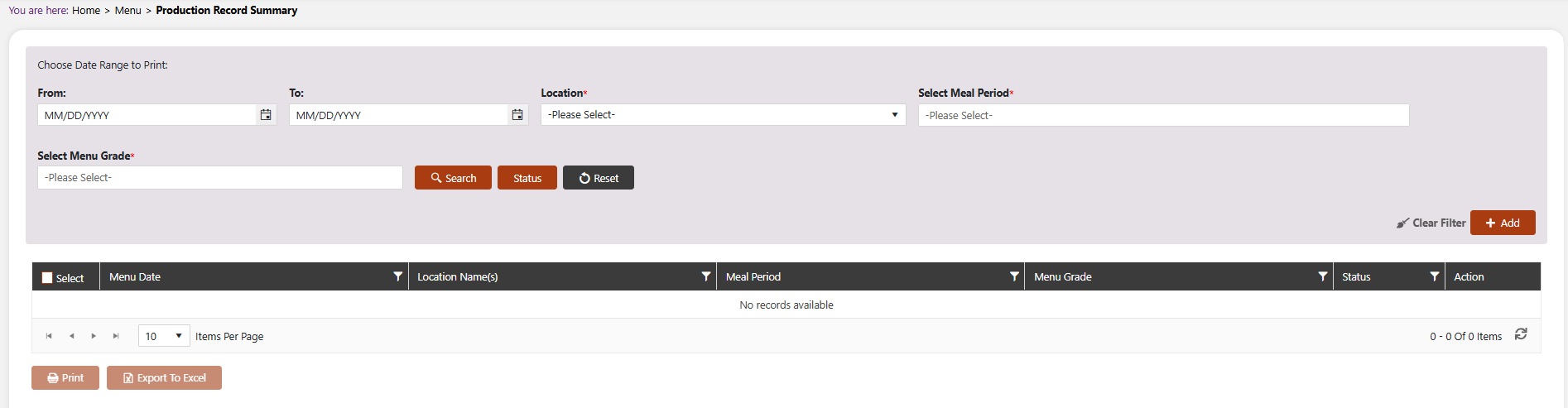
- When you click on the + icon under the Action column, the Bulk Update Menu Items screen opens.
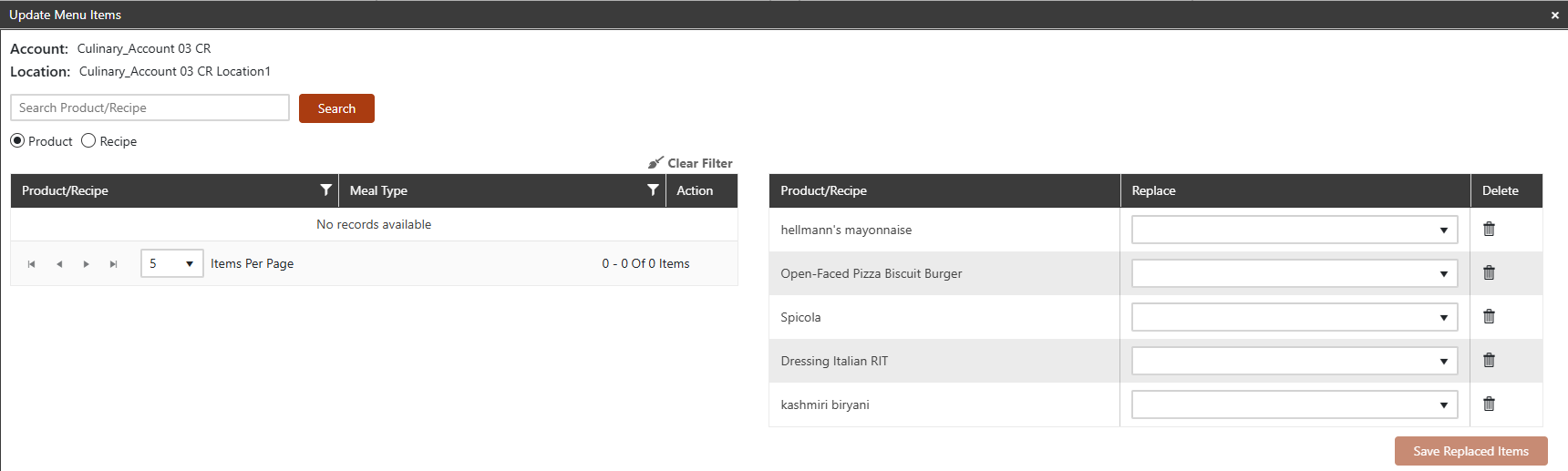
- On this screen, search for a product or recipe by clicking the search icon. Click on the " + " icon under the Action Column on the left side to update the respective product / recipe.
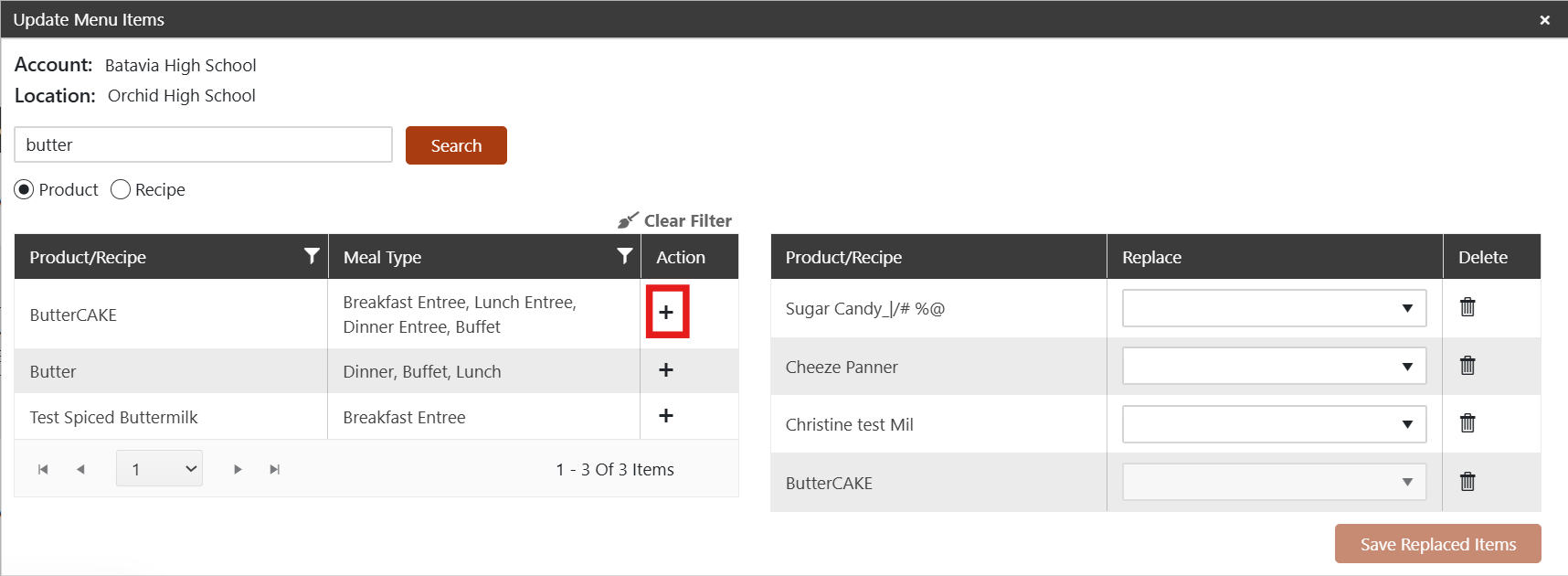
Based on the value selected under the Replace column, click Save Replaced Items to apply the bulk action to all selected menus.
IMPORTANT: Bulk actions affect all menus matching the filter criteria. Double-check your filters before applying changes.