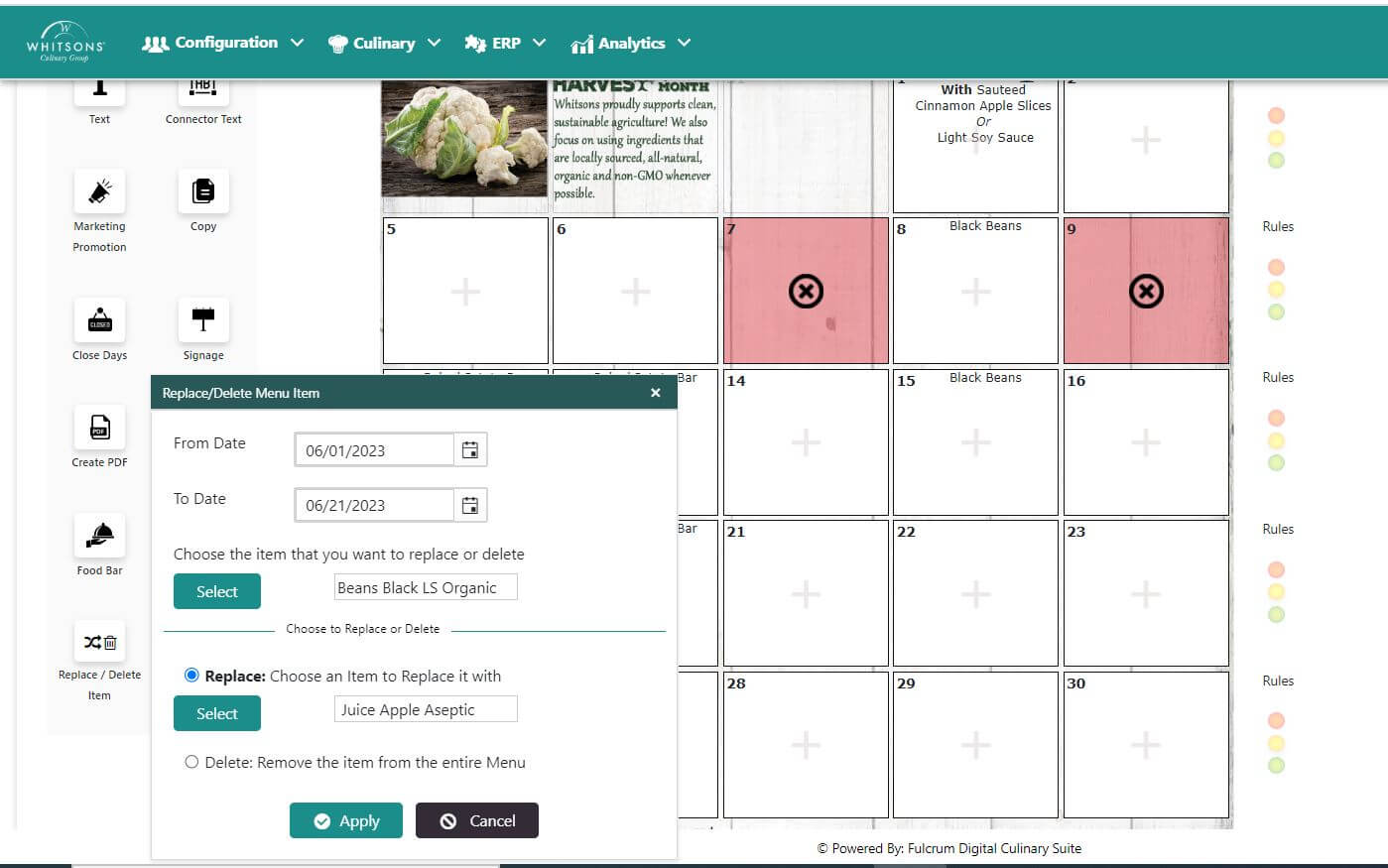
Replace or Delete Menu Items
Use this function to replace or delete a menu item for the month; e.g. if an ingredient was replaced by a vendor or for a new product.
On the Menu screen, click the Replace/Delete (left side). A popup screen will appear.
Click on the Select button to choose an item to replace or delete. A popup menu will come up with components that exist on the menu. You can use the filters to search for items, by clicking on the filter icon and by typing in the box.
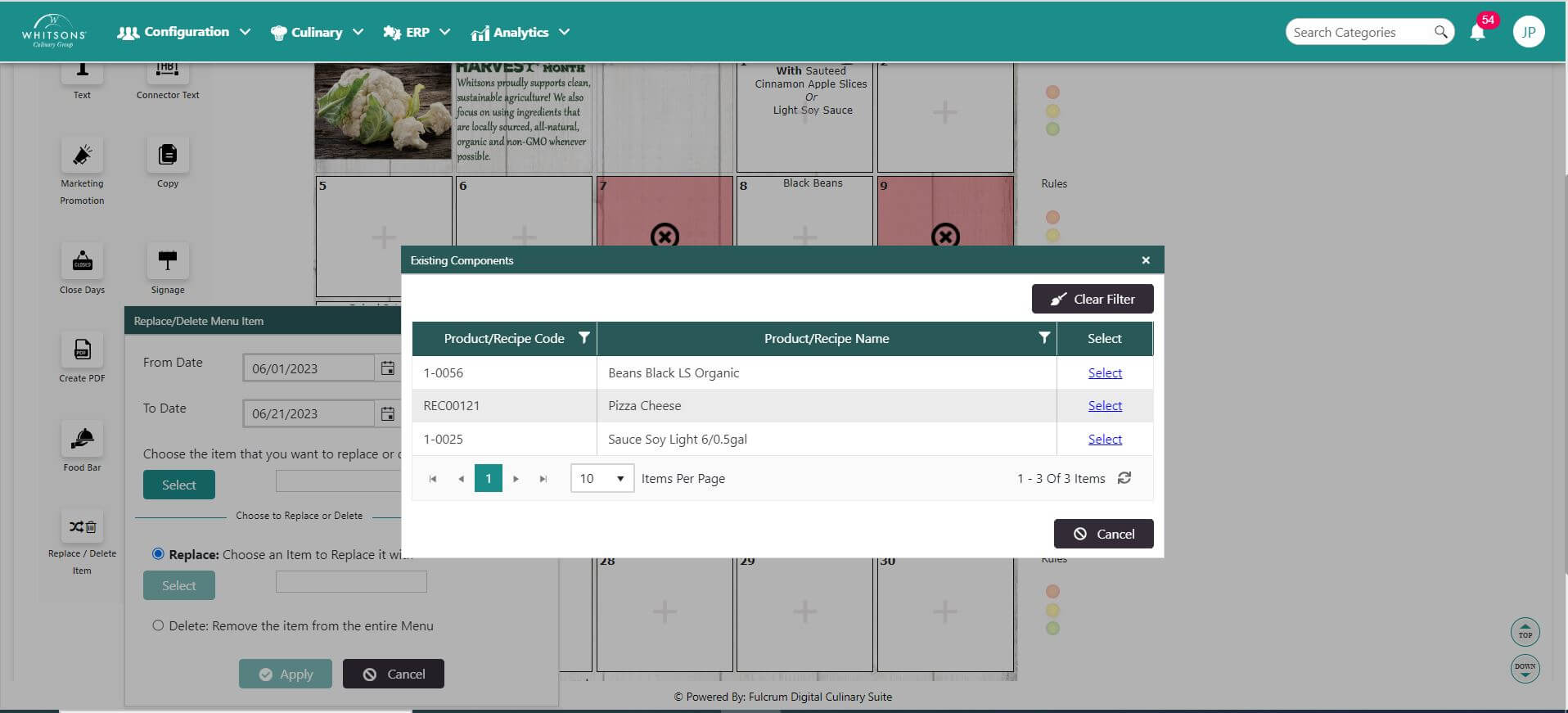
Once you find the item click on Select.
Choose what you want to do: select Replace or Delete
If you select Replace, you will need to select the replacement item. This will replace the original component everywhere it exists on the menu.
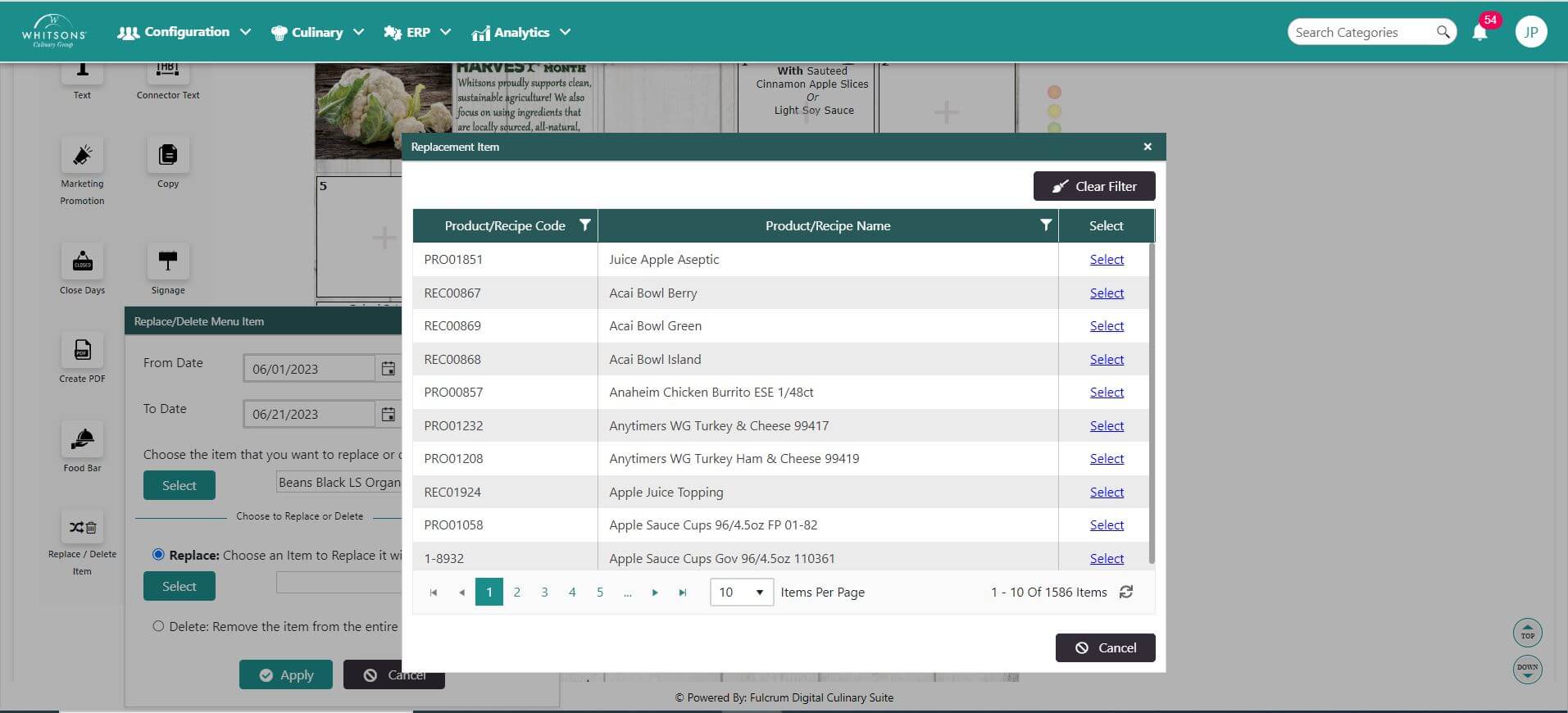
To select Delete, just click the button. This will delete the original component everywhere it exists on the menu.
Then when you are done, click the Apply Button, or select Cancel to cancel the transaction.