Uploading a Next Month's Menu in Addition to the Current Menu
Many districts require that Whitsons upload the next month's menu in addition to the current month's menu.
To post the current month, the 'Post to Website' button in DC is used. To post next month's menu in addition to the current month, follow the directions below.
Navigate to Menu Summary and select the menus you wish to upload manually (edit pencil icon).

Click the 'Create PDF' icon on the left toolbar.
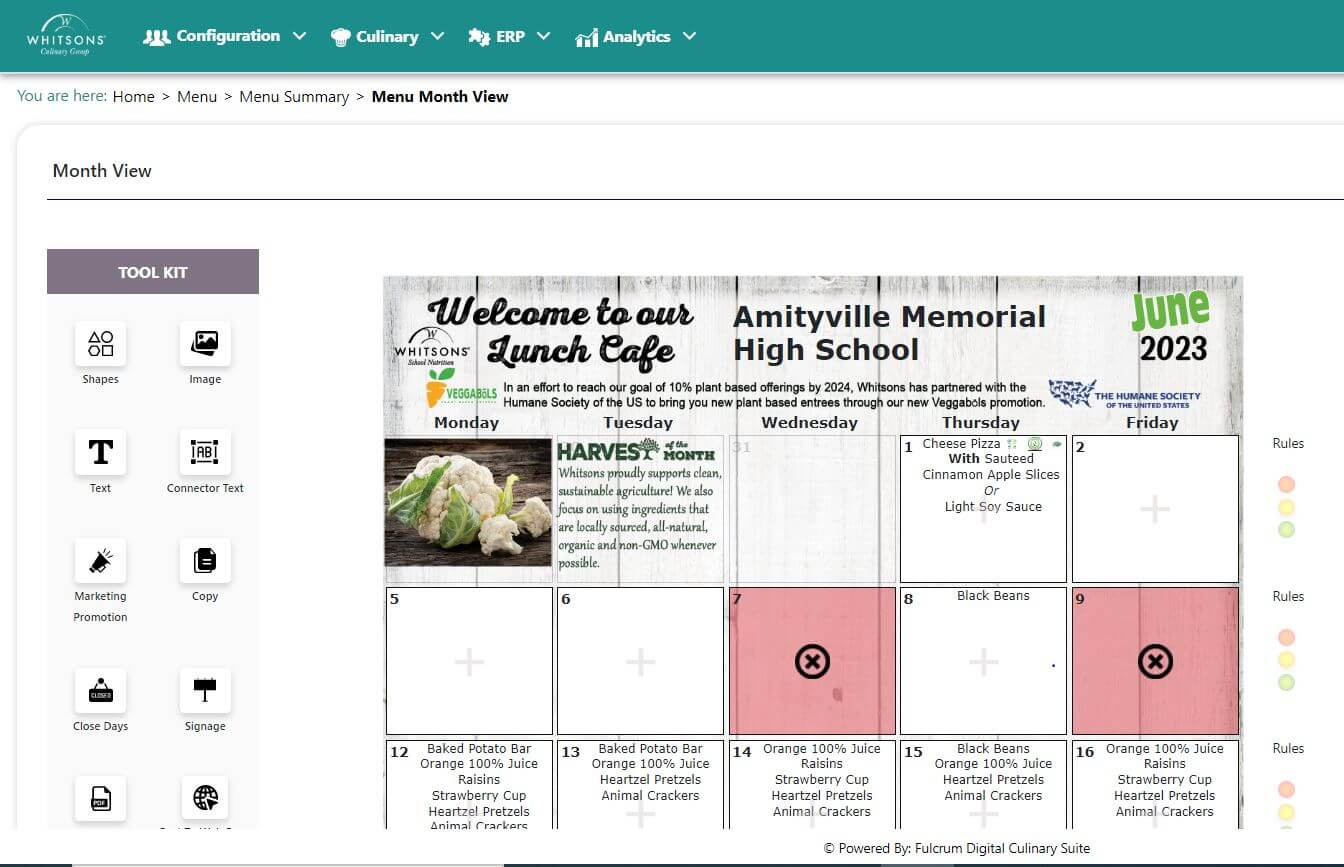
Check the Menu (School Names) you want to upload
Select the "Web" option
Click the "Create" button
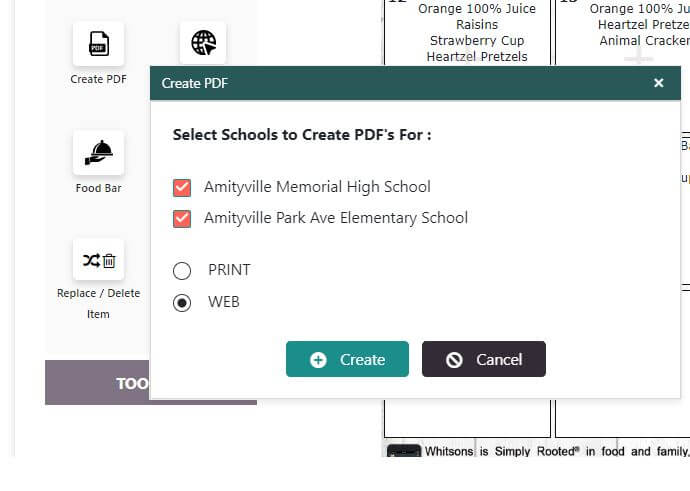
Save the file to your desktop
 Note
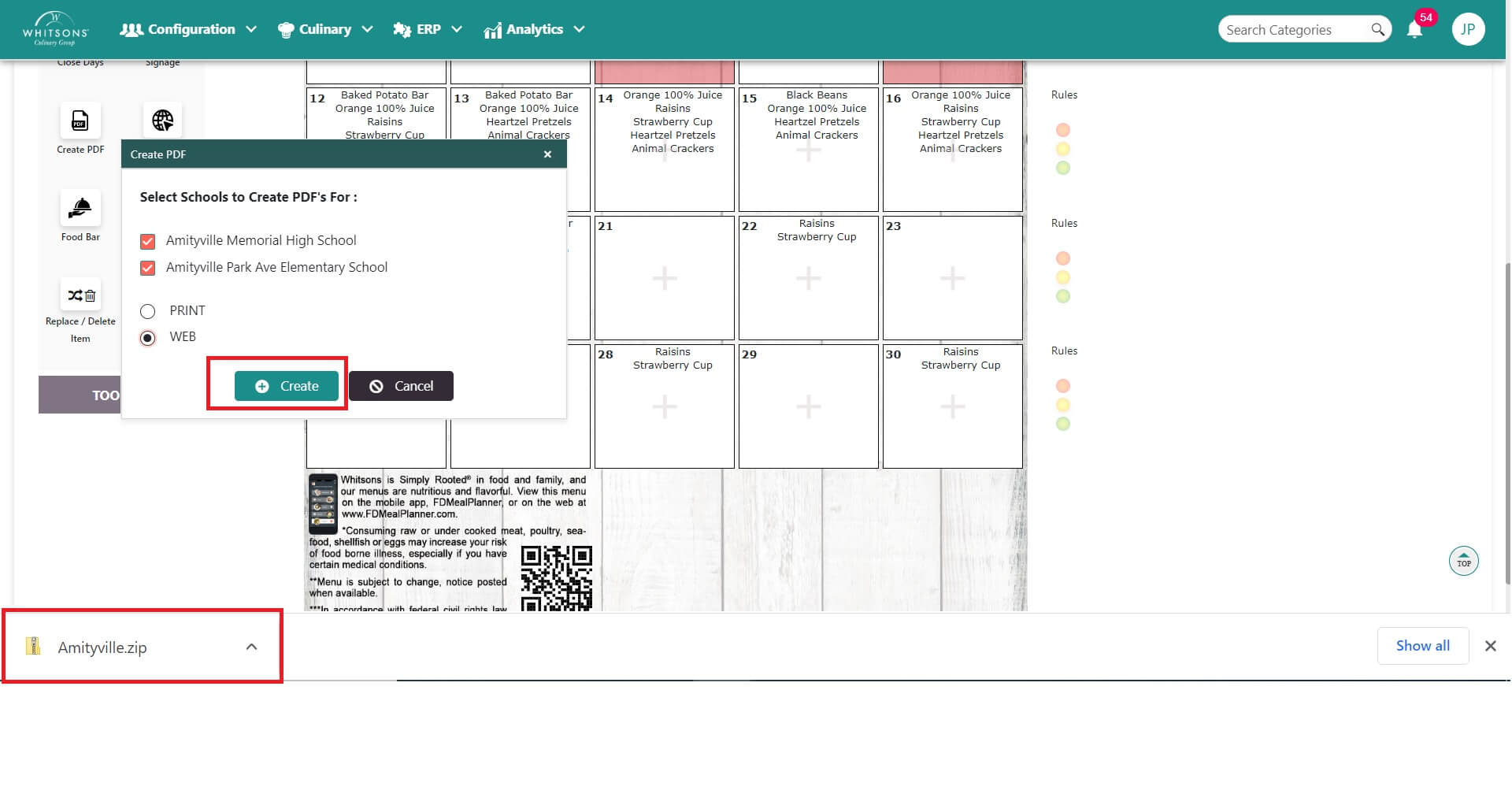
NoteIf creating a PDF file for only ONE menu, proceed to step 9.
If creating MULTIPLE PDFs and a .zip file is created, proceed to step 7.
Right click the .zip file and click "Extract All..."
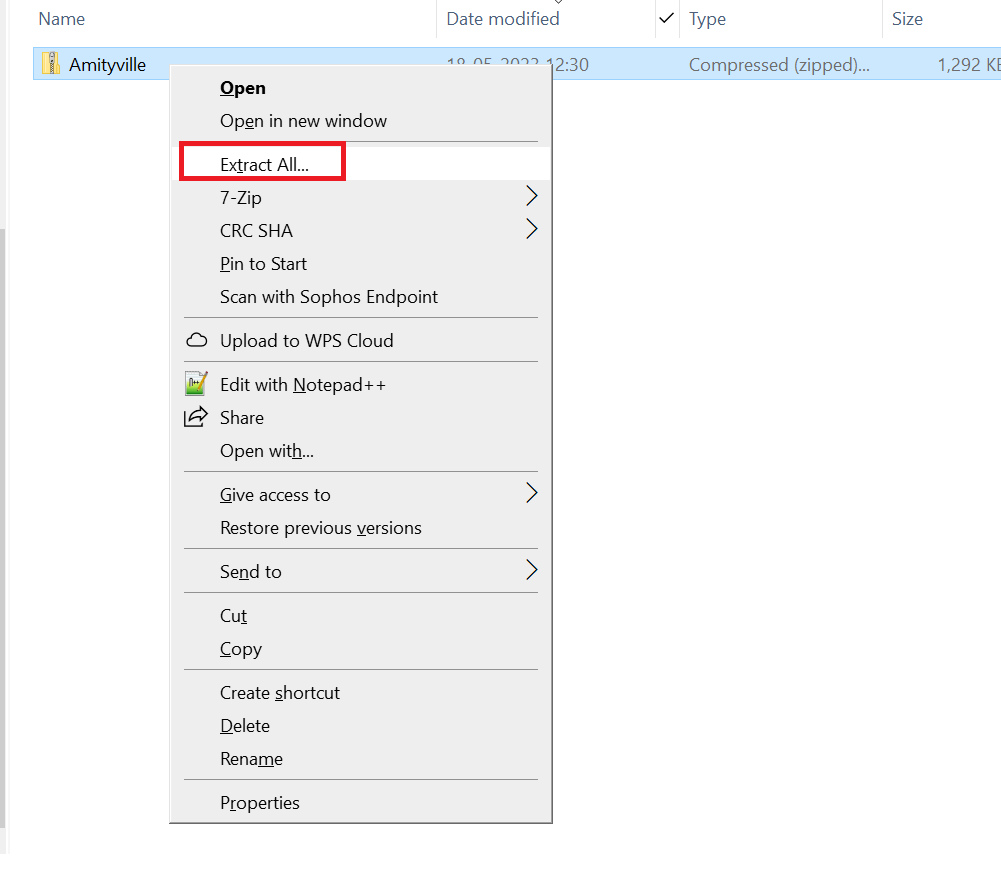
Click the Extract button

Log in to the website backend
a) Access your district article
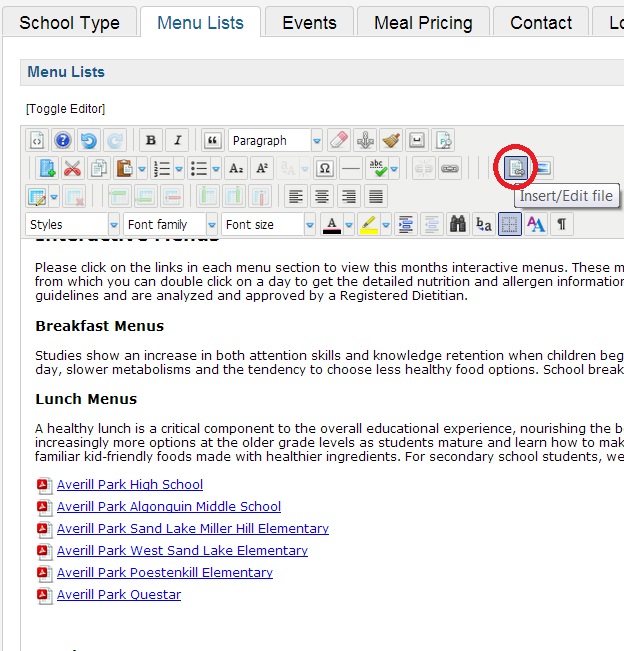
b) Click the Menu Lists tab
c) Place your mouse cursor in the area you want the menu to appear
d) Click the Insert/Edit file button
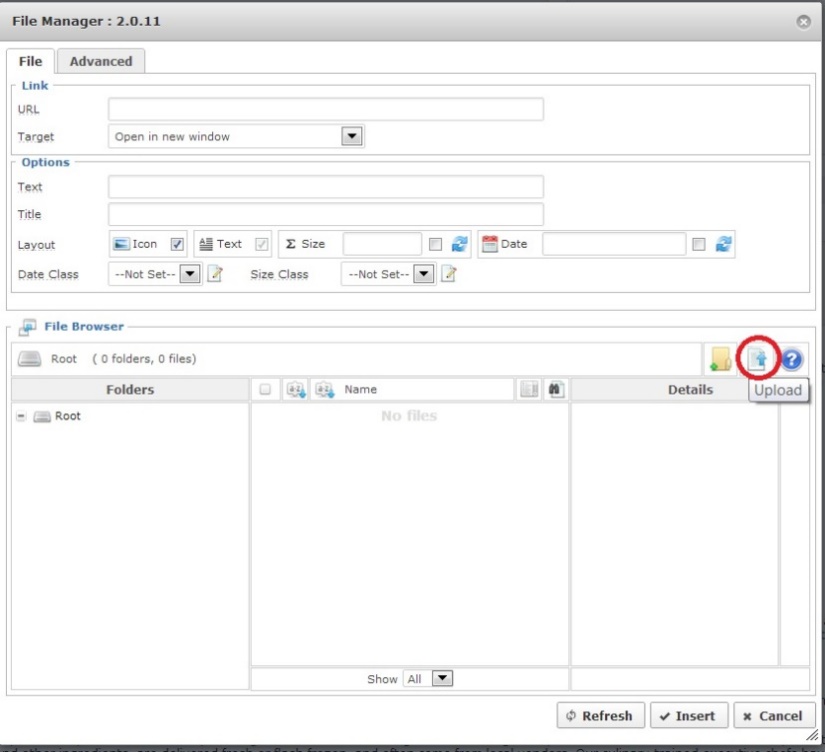
Click the Upload button
 Note
NoteVerify the ‘Target’ drop down menu is set to ‘Open in new window’
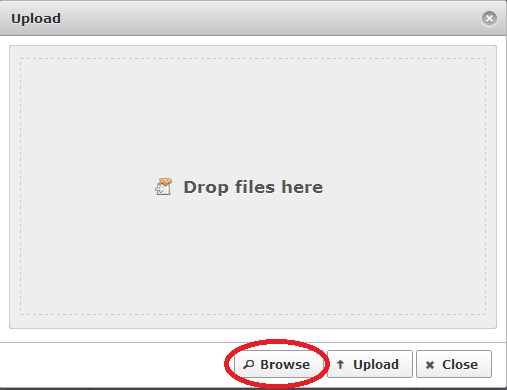
Click the Browse button
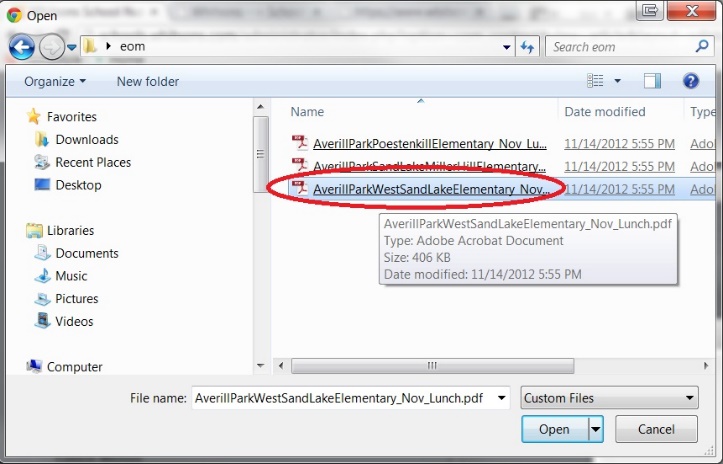
Browse your desktop for the Menus
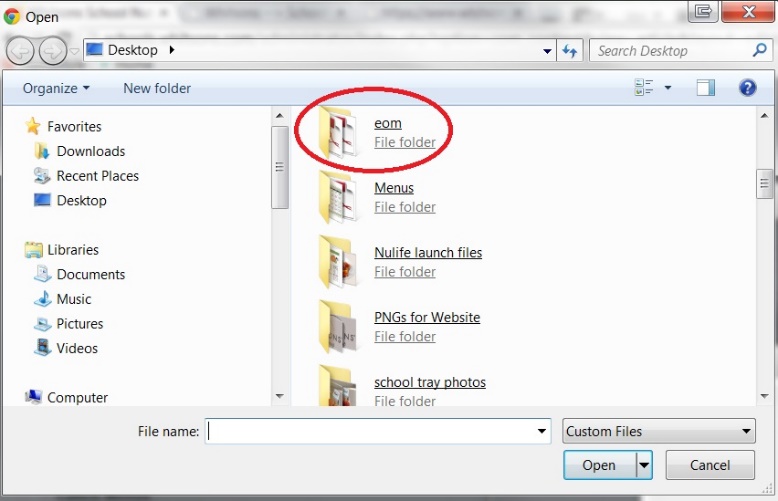
Click the Menu you want to upload
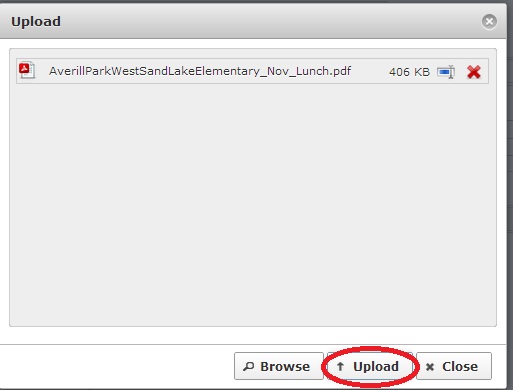
Click the Upload button
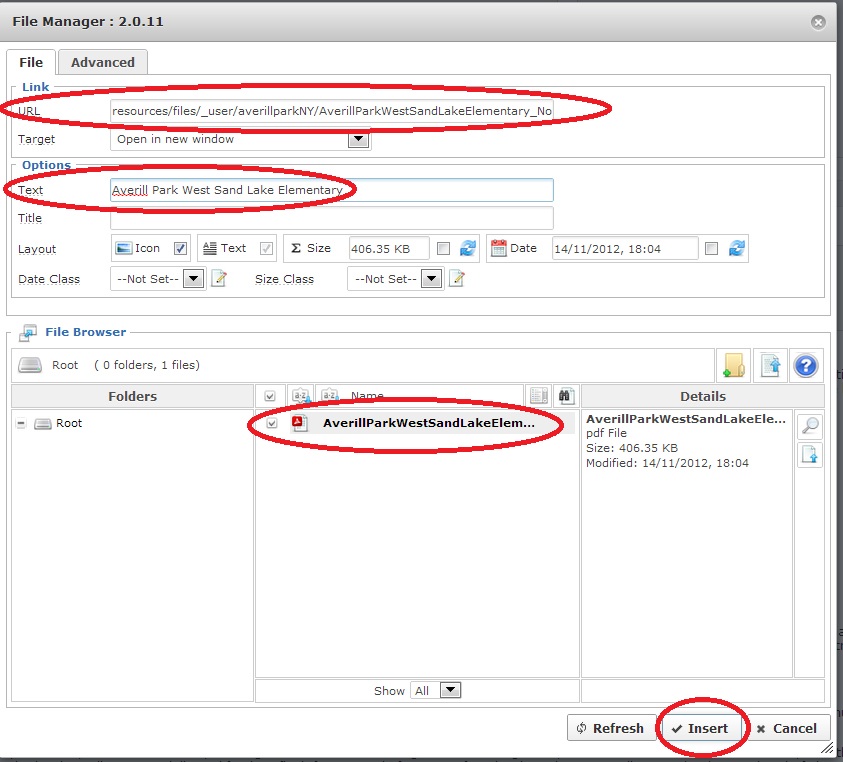
Click the PDF File to populate the URL text box.
Name the link in the "Text" text box. It should be the School Name.
Click the Insert button
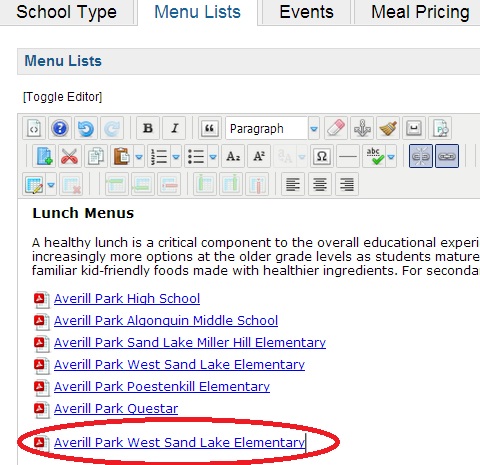
Finished. The new link to the Menu uploaded appears where the mouse cursor was placed.
 Note
NoteRepeat process for each additional menu.