Create a Food Bar on the Menu
There are certain types of food bars available in DineCentral (burger bar, chicken bar, deli bar, Guy's Fries, pasta bar, salad bar, taco bar, etc). Food bars should be used as much as possible as they allow you to offer the widest range items on that day.
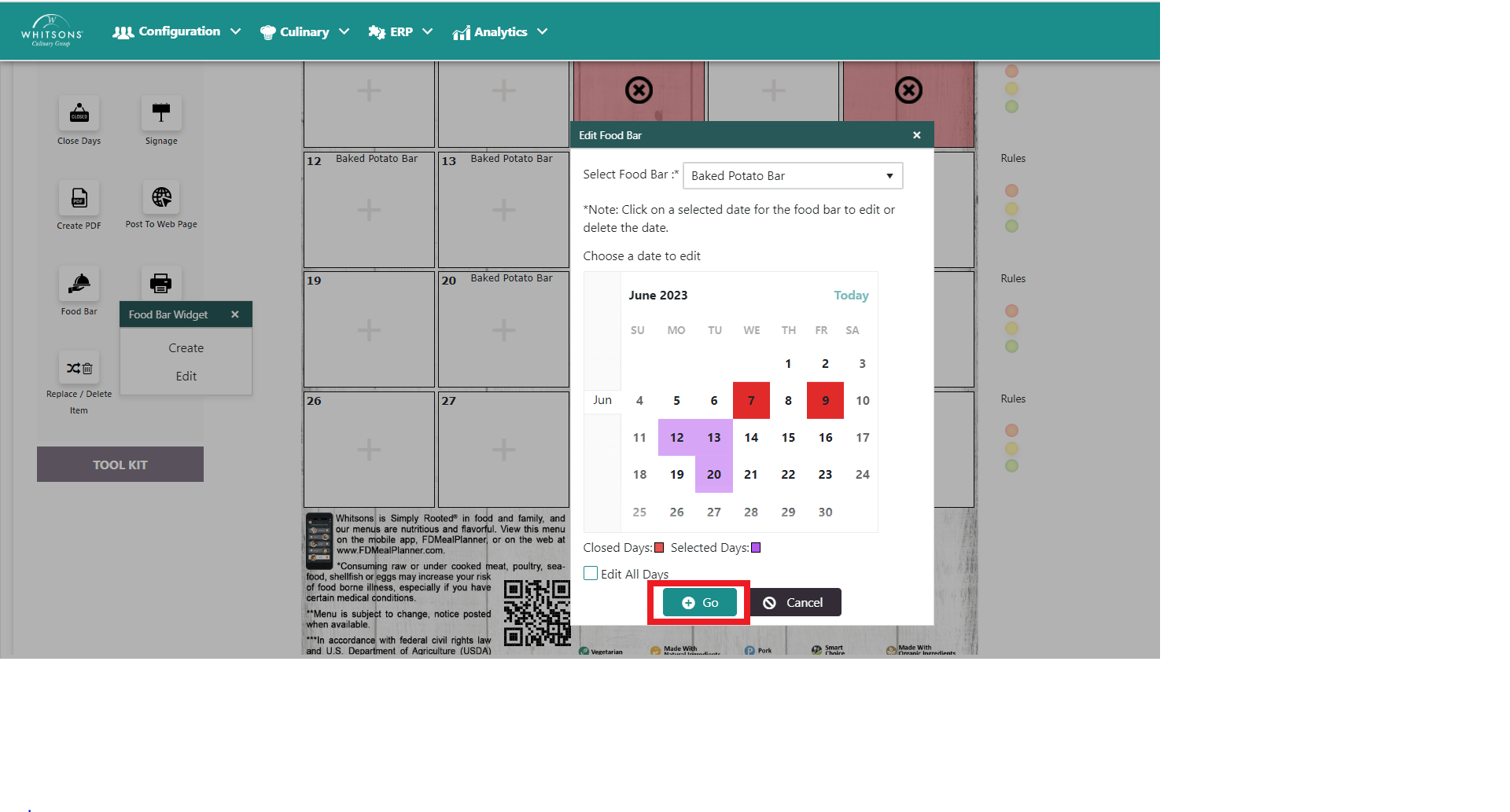
- From the Main Menu screen, select the Food Bar button on the left panel. In the popup window:
Click the Create button to add a food bar menu for the first time.
Select Food Bar from the drop down menu
Choose the dates you will offer the Food Bar. Selected dates will be highlighted. You can also Select All Days by clicking on the box below the calendar.
Click Go.
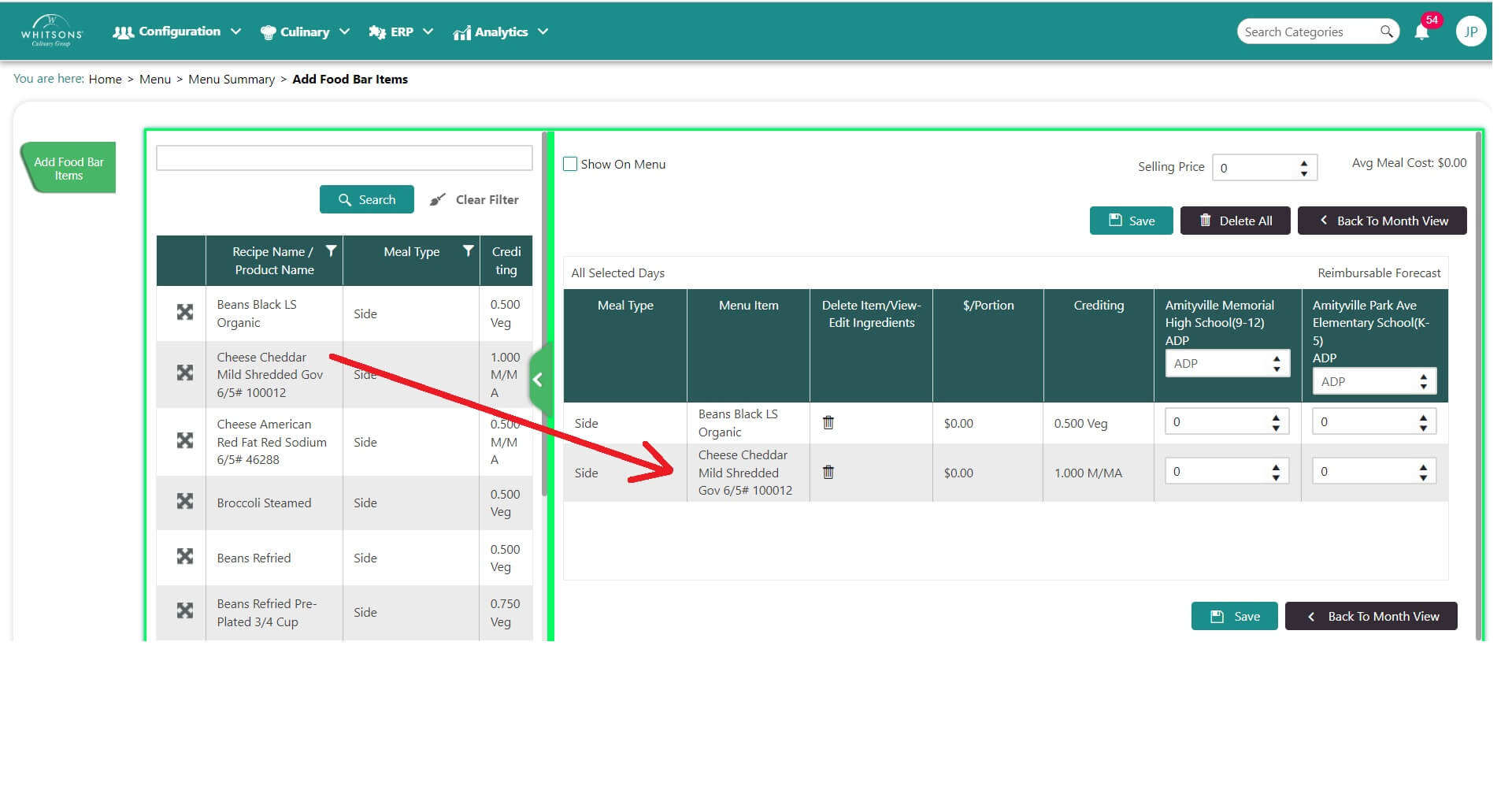
On the Menu Details screen, click Search. Select and drag items over to the right side of the menu.\ If there is more than one ingredient, a pop-up window will appear. Select the desired item.
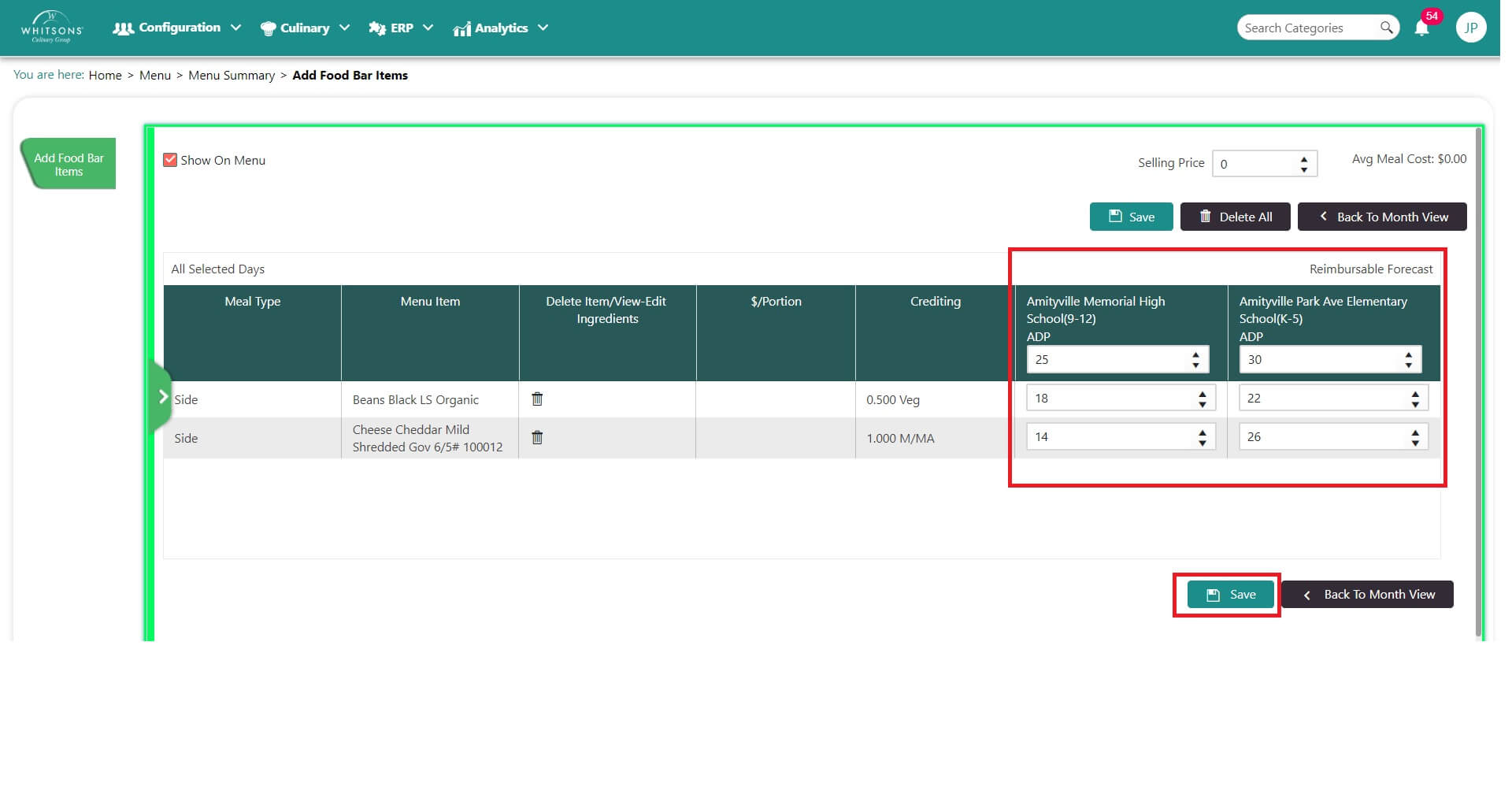
Add the Forecast and portions.
NoteThe ADP box at the top of the screen MUST be filled in for the number of entrees you expect to serve from the food bar for each location on the menu.
The portion forecasts are the number of portions that will be served of each item in the food bar.
Dine Central will assess the forecast entered for the Grain & Meat/Meat Alternate to the number of entrees forecasted for the food bar (all except for Salad Bar). The traffic lights reflect the assessment.
If you want the Food Bar to show on the menu, check the Show on Menu box in the upper right corner. Click the Save button. You will receive a confirmation message.
The items added, deleted, forecasted and variants selected, when all the days are selected (or when initially created) update all the days the food bar is offered.