Enter Production Records via the Web
You can enter Production Records for the current day or any prior day as long as the production record for that day has not been completed.
Once a record is completed, authorized users may edit the record for up to four days. After the fourth day, the record cannot be edited.
The Menu for the month must be created before you can enter production records.
On the DC homepage, hover over the Menu icon and click on Production Record Entry option from the drop down menu.
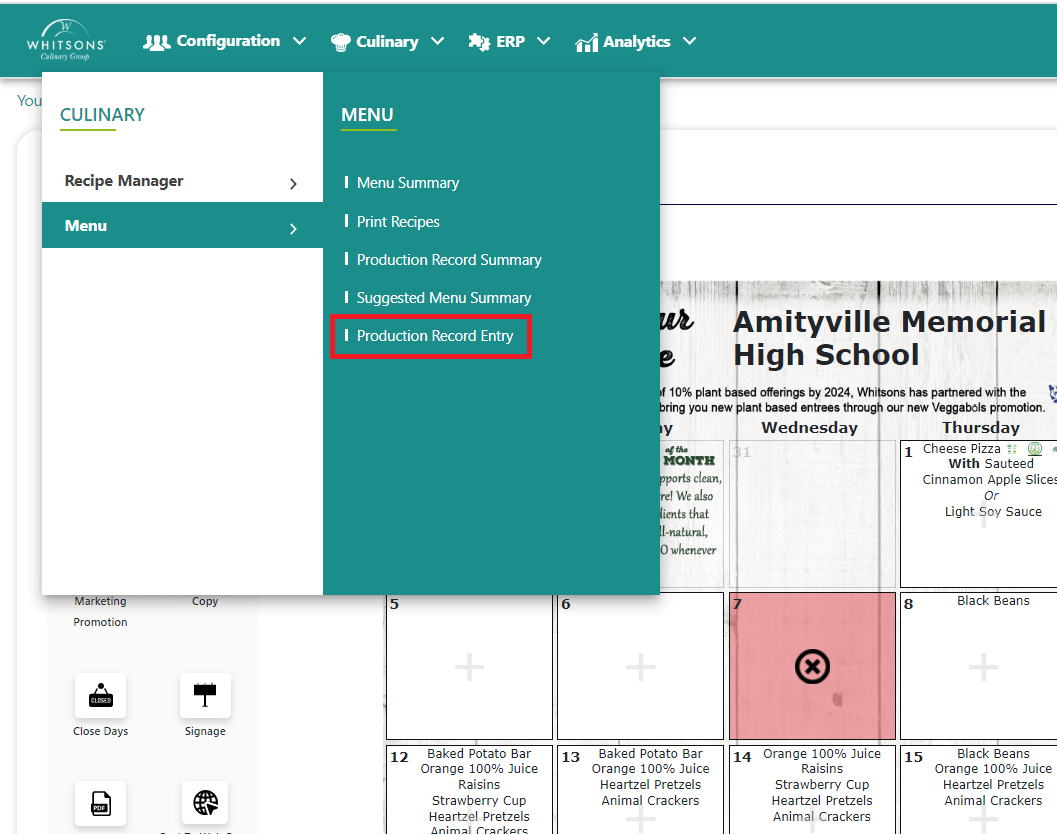
- On the Production Record Entry screen:
Select Menu Date
Select School
Select Meal Period
Select Menu Grade
Select a Serving Line
Note"Master" is all serving lines combined.

Entering Production Records: Overview
Data can be entered directly on the Master for all serving lines, or entered by serving line.
Select the serving line if you want to enter data for a particular serving line, and be sure to save your data before switching to another serving line. Data entered on multiple serving lines and will add together and roll up to the master record.
You can also filter the production record by food bar (if there is a food bar on the menu) and enter the data for the items that are specific to the food bar.
About the Master Record
The Master record will contain all of the menu items and totals entered (either from serving lines or entered directly in the master record).
At the top of the screen, you will see the total meals served for students and adults. To get this number, DC is adding together the Reimbursable Served Quantity entered for all entrees on the menu PLUS the total student meals from the food bar. You can change this number if desired.
- To get the number of total meals served for adults (i.e. non-reimbursable meals), the system is adding together the Non-Reimbursable Served quantity entered for all of the entrees on the menu PLUS the total adult meals from the food bar. You can change this number if desired.