Edit the Food Bar
You can edit the Food Bar to:
Add, edit, or delete items, forecasts and variants on a specific food bar day (applicable only to the selected day)
Assign the food bar to a new day
Change the show on the menu for one or more days
Edit the food bar data for all the days simultaneously
Adjust the forecast or ADP or both
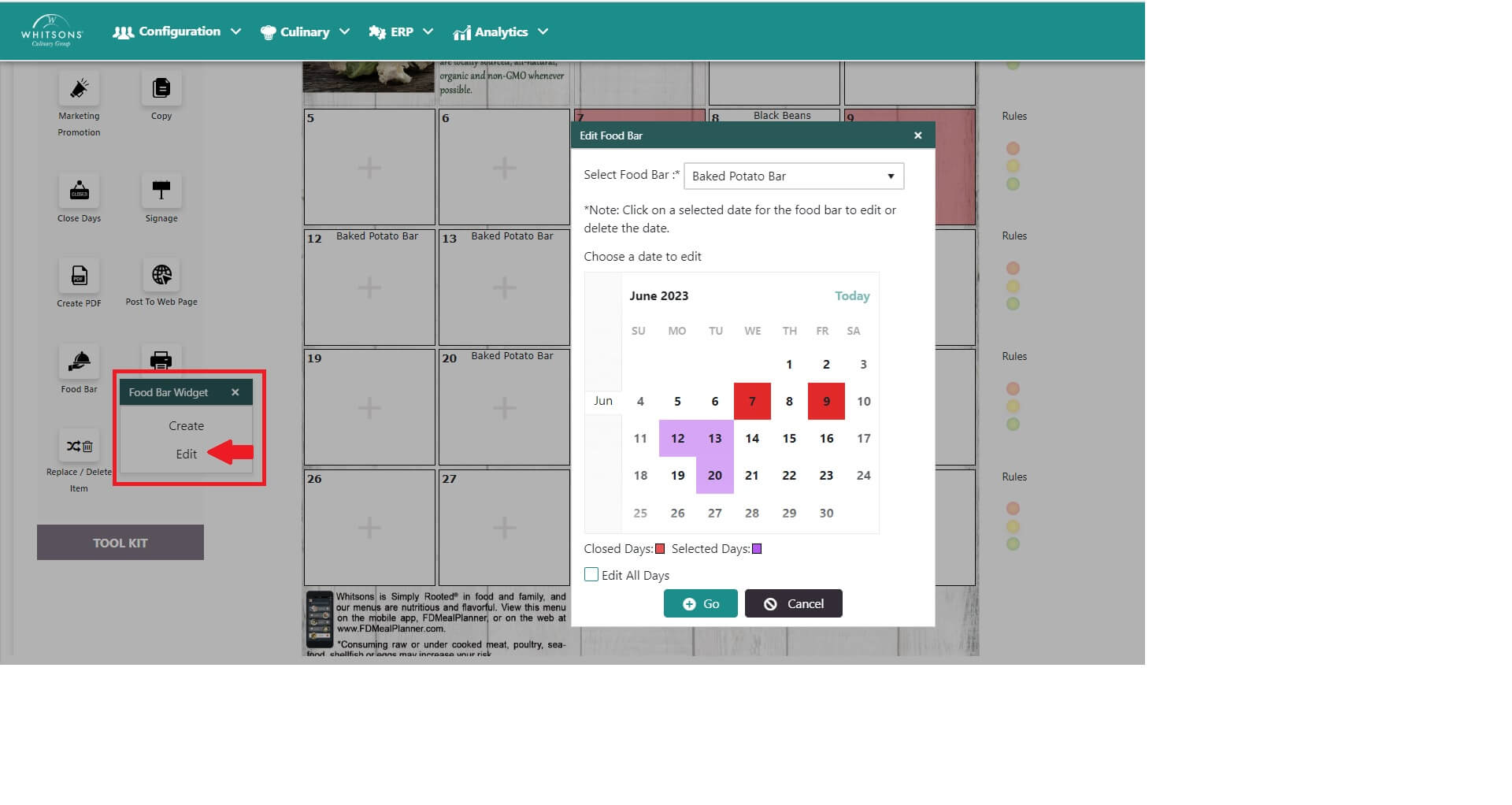
To edit the food bar, go to the Month View and select the Food Bar button/Edit.
On the popup window, select the day you wish to edit and click Edit or Delete. You can edit all the days by clicking on the Edit All Days button. Note: Editing all days will show the items on the food bar that are common to all the days that the food bar exists on (so if you have added an item to only one specific day on the food bar, that item will not appear when the Edit All Days is selected).
You will return to the Menu Summary Screen.
Delete items by clicking the trash can. A window will pop-up for you to confirm deletion.
To add items, use search function and drag and drop items to the right.
Adjust the ADP or forecasted portions When you are done with the edits, click Save.