Print Signage
Within the DineCentral Menu function, you will find that you can print appropriate signage for items on your menu.
Signage prints the first two entrees of the day (that are flagged to show on the menu) plus any sides/condiments/beverages that are associated to one of those two entrees. If the side/condiment/beverage is not associated to one of those two entrees then the system will not display it on the signage.
On the Menu screen, click the Signage button (left side). A popup screen will appear.
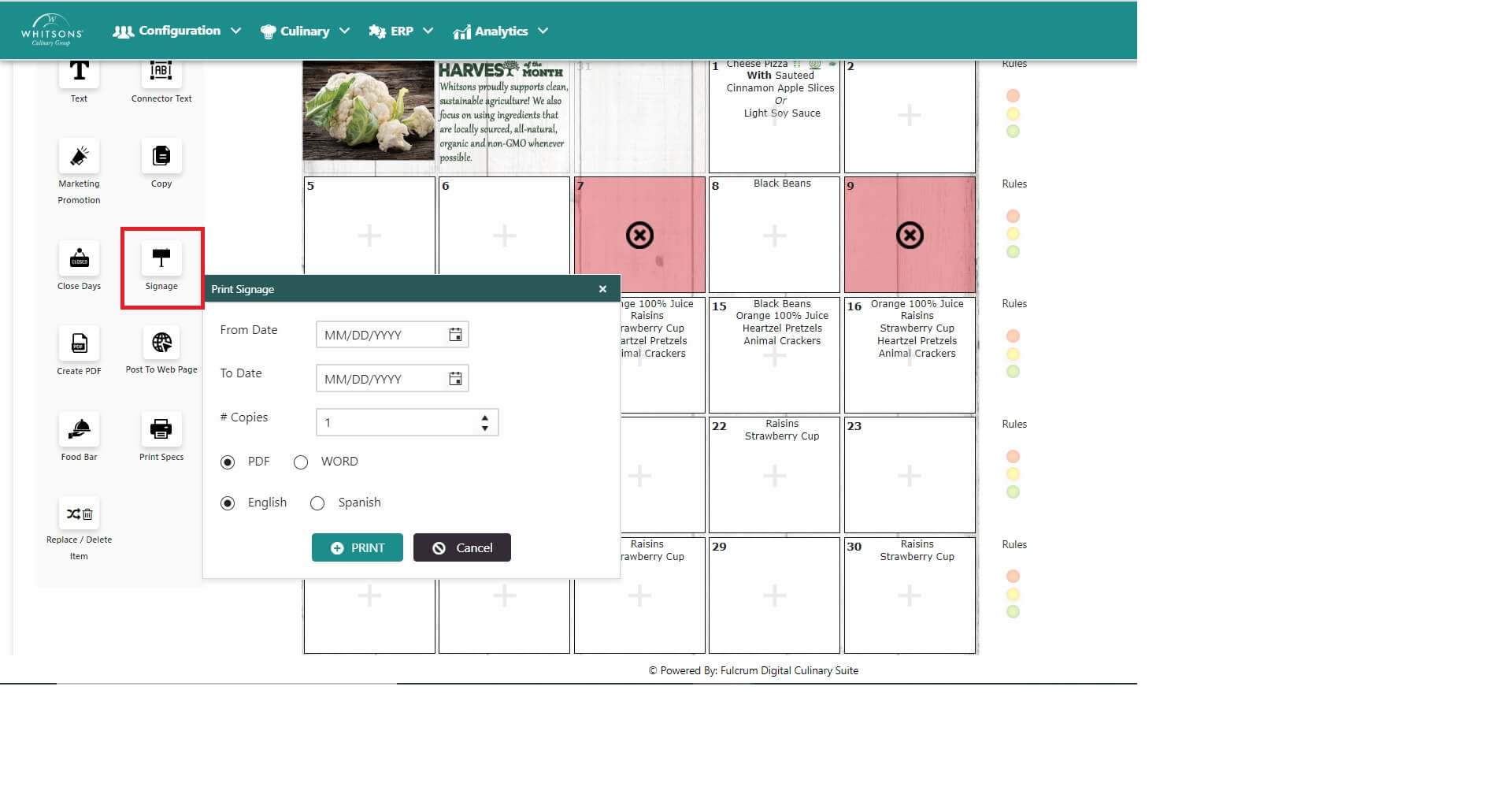
Click the Calendar button to select From Date and To Date. Do not select more than 5 business days to print at a time.
Enter the number of copies to produce.
Select the desired language for the signage. (English or Spanish),
Click the Print button.
A Zip file will download.
Click to open the Zip file. Your menu signs will be in a PDF format.
NoteThere are no graphics on the daily signs.
To print signage for Concept Menus:
If you have created a concept menu, you will need to use the overlay with the concept logo with the sign holders.
Signs will display the marketing name, which may include a brief description and list the allergens.
The system displays signage for one entrée per concept (row) along with any sides/condiments/beverages that are associated to the entrée. If there are 7 rows on the concept menu, and you have menu items in each of the rows and you want to print one day of signage, the system will produce 7 pages of signage for you for that day.