Add Text
On the Menu screen, click the Text button (left side). A popup screen will appear.
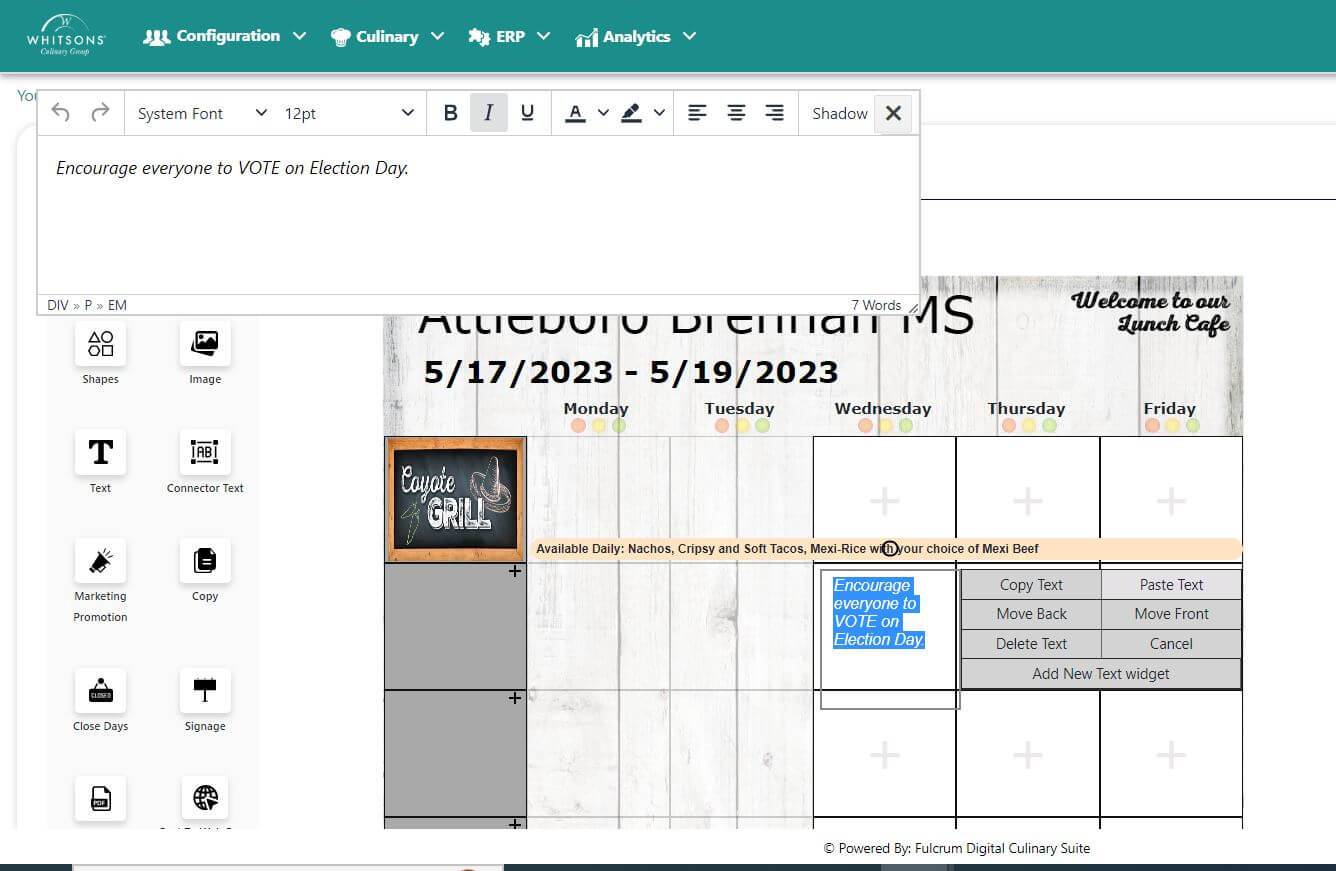
In the popup window:
Click on the Add Text button
A side menu will appear with choices to Save, Copy, Delete, Paste and Cancel. For a concept menu, there is an additional choice to copy the text box to future weeks. When copied, it will be placed in the same position on all future weeks of the concept menu.
Type into the text box and format the text using the commands on the gray bar (color, bold, italic, move front, move back, etc.)
Size the text box by clicking and dragging the circles at the corner. Click on the gray "Drag Me" task to drag the text box into the desired position.
Click Save Text
tipIf you want to edit the text after saving, click on the box and select the Text button from the left to enable editing.