Label Queue
Overview
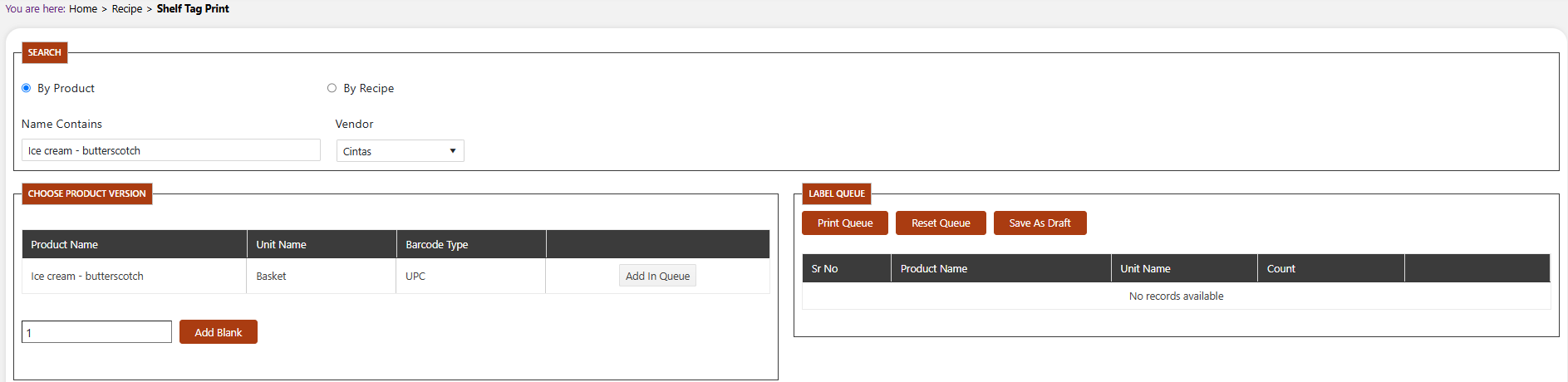
The Label Queue screen (also titled Shelf Tag Print within the application) allows you to search for products or recipes, add them to a print queue, and print or manage shelf tags in bulk.
Navigate to: Culinary > Recipe Manager > Label Queue
SEARCH
Use the SEARCH section to find products or recipes to add to the label queue.
| Field | Type | Description |
|---|---|---|
| By Product / Recipe | Radio | Select whether you are searching for a Product or a Recipe |
| Name Contains | Text | Enter a product or recipe name (partial matches supported) |
| Vendor | Dropdown | Filter results by vendor |
Click Search to display matching results.
CHOOSE PRODUCT VERSION
After searching, matching items appear in the CHOOSE PRODUCT VERSION section.
| Field / Column | Description |
|---|---|
| Product Name | Name of the product or recipe found |
| Unit Name | The unit of measure for the product |
| Barcode Type | The barcode format associated with this product version |
| Add In Queue | Click Add In Queue to add this item to the Label Queue below |
| Add Blank | Click Add Blank to add a blank label entry to the queue |
LABEL QUEUE
The LABEL QUEUE section displays all items currently queued for printing.
| Column | Description |
|---|---|
| Sr No | Sequential number of the item in the queue |
| Product Name | Name of the queued product or recipe |
| Unit Name | Unit of measure |
| Count | Number of labels to print for this item. Edit the value directly in the grid. |
Queue Actions
| Button | Description |
|---|---|
| Print Queue | Send all items in the queue to the printer |
| Reset Queue | Clear all items from the queue |
| Save As Draft | Save the current queue to return to later without printing |
Note
The Save As Draft button saves the label queue without printing. Contact your system administrator if you need to retrieve a previously saved draft queue, as this feature may require additional configuration.