View Reports
In addition to the Revenue Dashboard, there are other reports you can view: Reimbursement Claim Form, Cash Reconciliation, Federal/State Reimbursement, Transaction Detail, and Sales & Meal Count, Catering Invoice and POS Reconciliation Summary.
Corporate accounting, DM's, VP's and account management staff have access to the reports for his/her accounts.
Reimbursement Claim Form
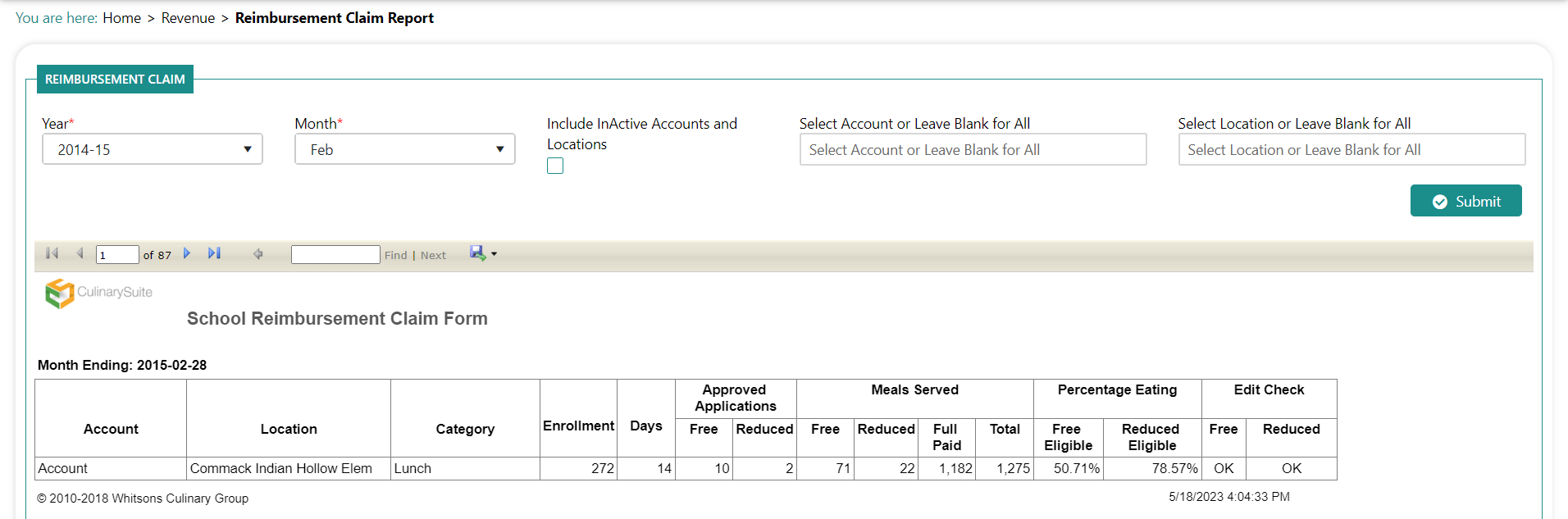
The Reimbursement Claim Form report displays the reimbursable meals served and displays "ERROR" if the count exceeds the number who were eligible to receive them. You cannot be more than 100% claimed.
To view reimbursement claim form:
Click Revenue>Reports>Reimbursement Claim Form. You are prompted to input report parameters:

Select the Year and Month.
Select and Account and/or Location, if needed.
Click Submit. The report results appear:
Cash Reconciliation
The Cash Reconciliation report shows the breakdown of the total deposit amount for account(s) or location(s) based on the data entered into the revenue entry screen. You can select one account/location or all those you have access to. If you choose to list all accounts/locations, you can indicate whether you want the report to display each on a separate page or summarize/aggregate all of the data onto one page.
NOTES:
If you only have one account (School District), you do not need to select an account.
The Aggregate option is used when you wish to consolidate or summarize the data in the report. For example, you may want to see the data for all of your locations rolled up as a summary into one report.
To view cash reconciliation:
Click Revenue>Reports>Cash Reconciliation. You are prompted to input report parameters:
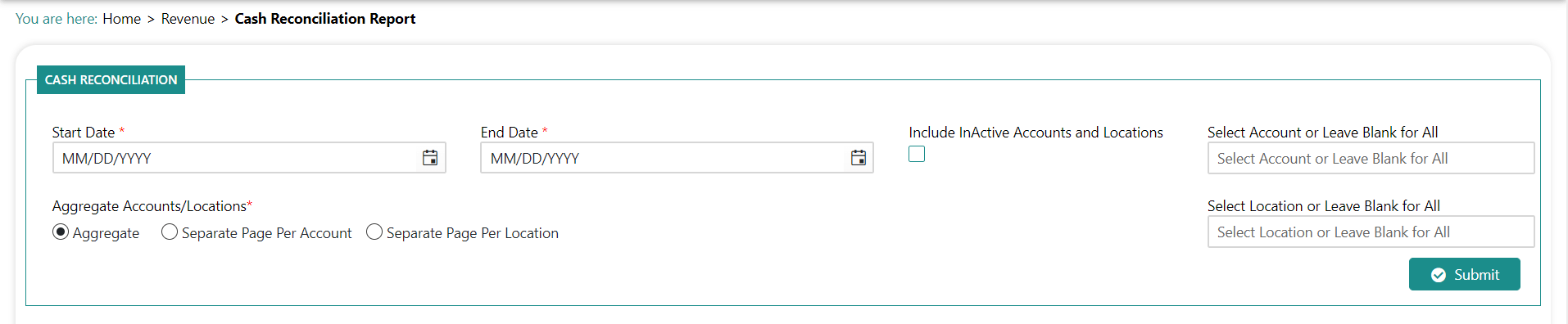
Choose the Start and End Date.
Choose a particular Location, if needed.
Indicate whether to Aggregate accounts to see a summary or separate pages for the Account or Location.
Click Submit. The report results appear:

Federal/State Reimbursement
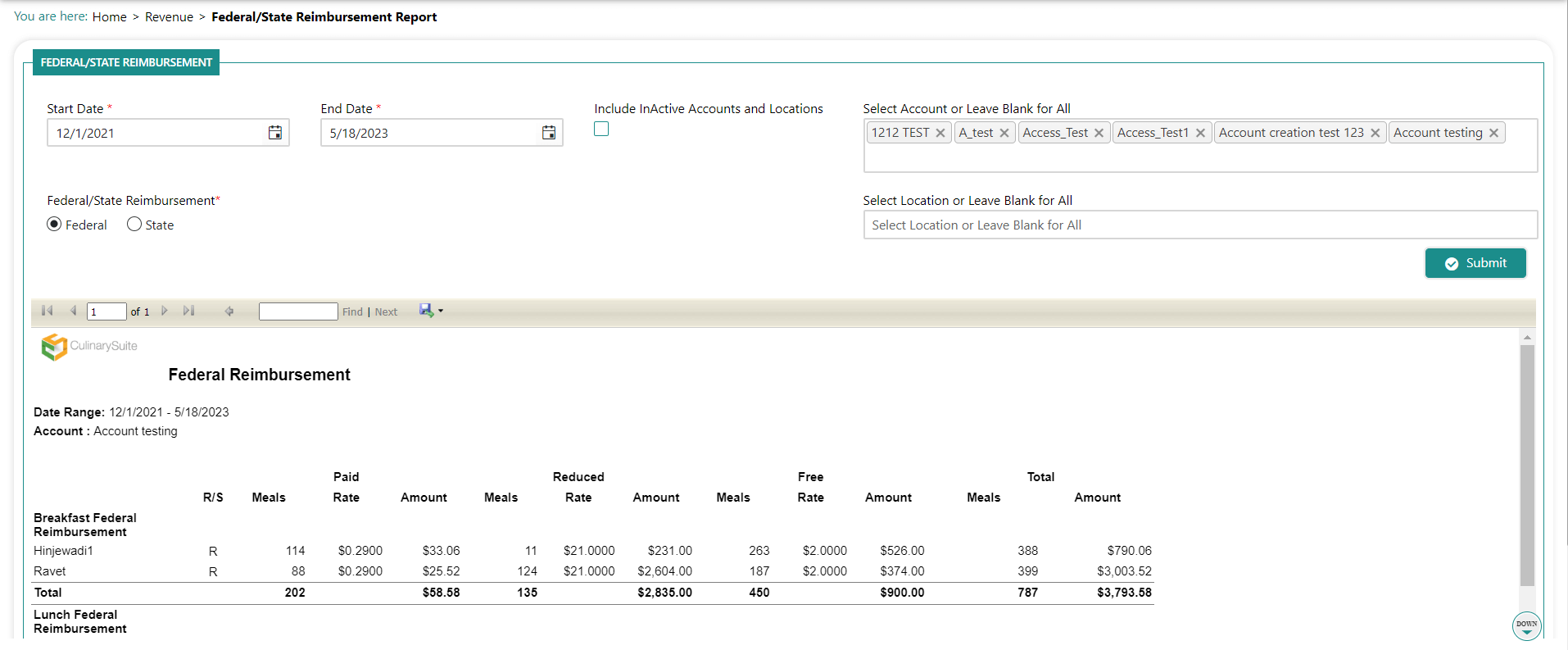
The Federal/State Reimbursement report displays the federal or state reimbursement meals, rates and totals by category and charge type (e.g. free reduced, full).
To view federal/state reimbursement:
Click Revenue>Reports> Federal/State Reimbursement. You are prompted to input report parameters:
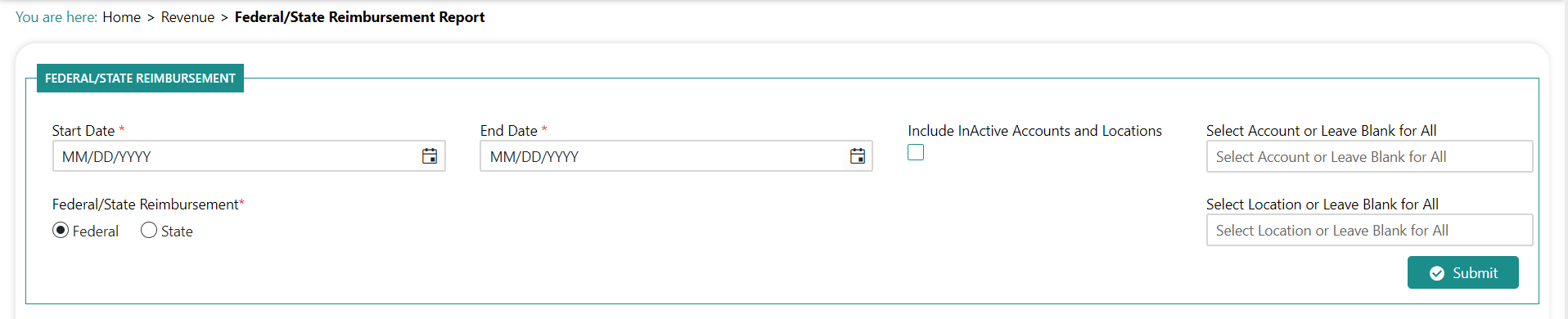
Choose the Start and End Date.
Choose a particular Account or Location, if needed.
Choose Federal or State.
Click Submit. The report results appear:
Transaction Detail
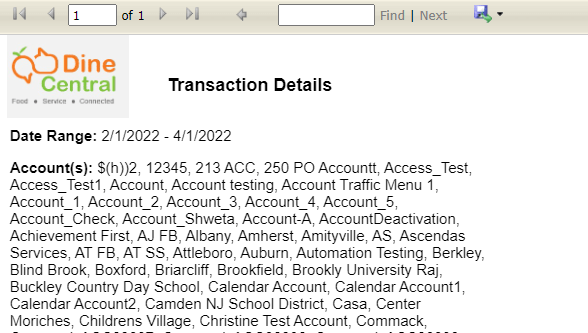
The Transaction Details report displays information about all transaction for your accounts/locations. You can choose to run the report in either detail or summary mode. Detail mode shows the transactions for each date in the date range and can be useful when finding discrepancies during reconciliation. Summary mode shows the totals of each category/price for all dates summed together.
NOTES:
If you only have one account (School District), you do not need to select an account.
The Aggregate option is used when you wish to consolidate or summarize the data in the report. For example, you may want to see the data for all of your locations rolled up as a summary into one report.
This report can be used to replace the School Lunch Deposit report by selecting School Lunch Deposit as the data to display. Other reports that will display are Vending Sales Deposit, Catering Deposit, Charge Deposit, Online Prepayments, and Vending Commission Deposit. Contact IT if you do not have access.
This report can be used to view Deposits by selecting the appropriate Deposit as the data to display. Save as PDF (Name (Month#) Deposit Reports Current Month/Year).
Save in L:\Accounting Level 3\School Month End\Current Year Dine Central Deposit Reports.
To view transaction detail:
Click Revenue>Reports>Transaction Detail. You are prompted to input report parameters:
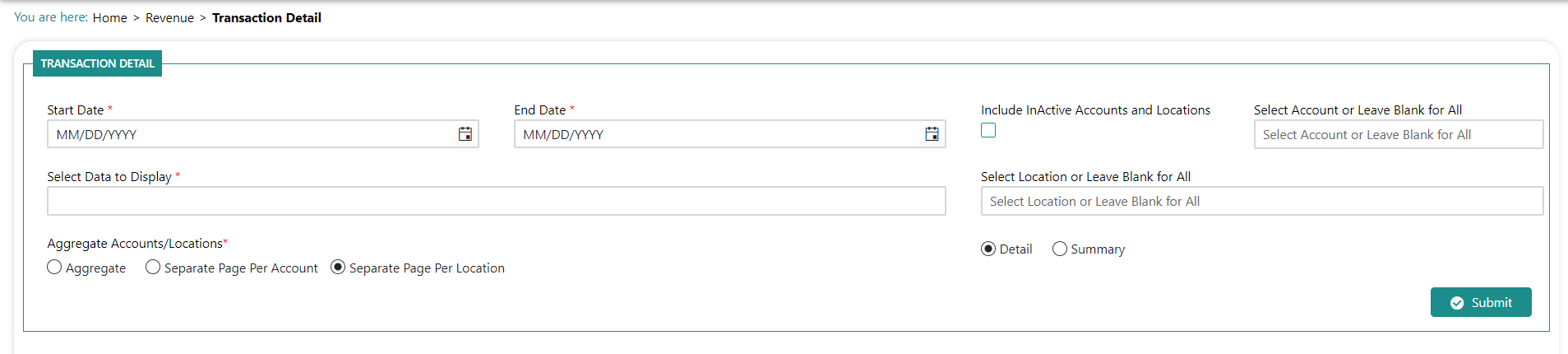
Choose the Start and End Date.
Choose a particular Location, if needed.
Select the appropriate Data to Display (School Lunch Deposit, Vending Sales Deposit, Catering Deposit, Charge Deposit, Online Prepayments, Vending Commission Deposit
Indicate whether to Aggregate accounts to see a summary or separate pages for the Account or Location.
Choose whether you want a Detail or Summary report.
Click Submit. The report results appear:
Sales & Meal Count
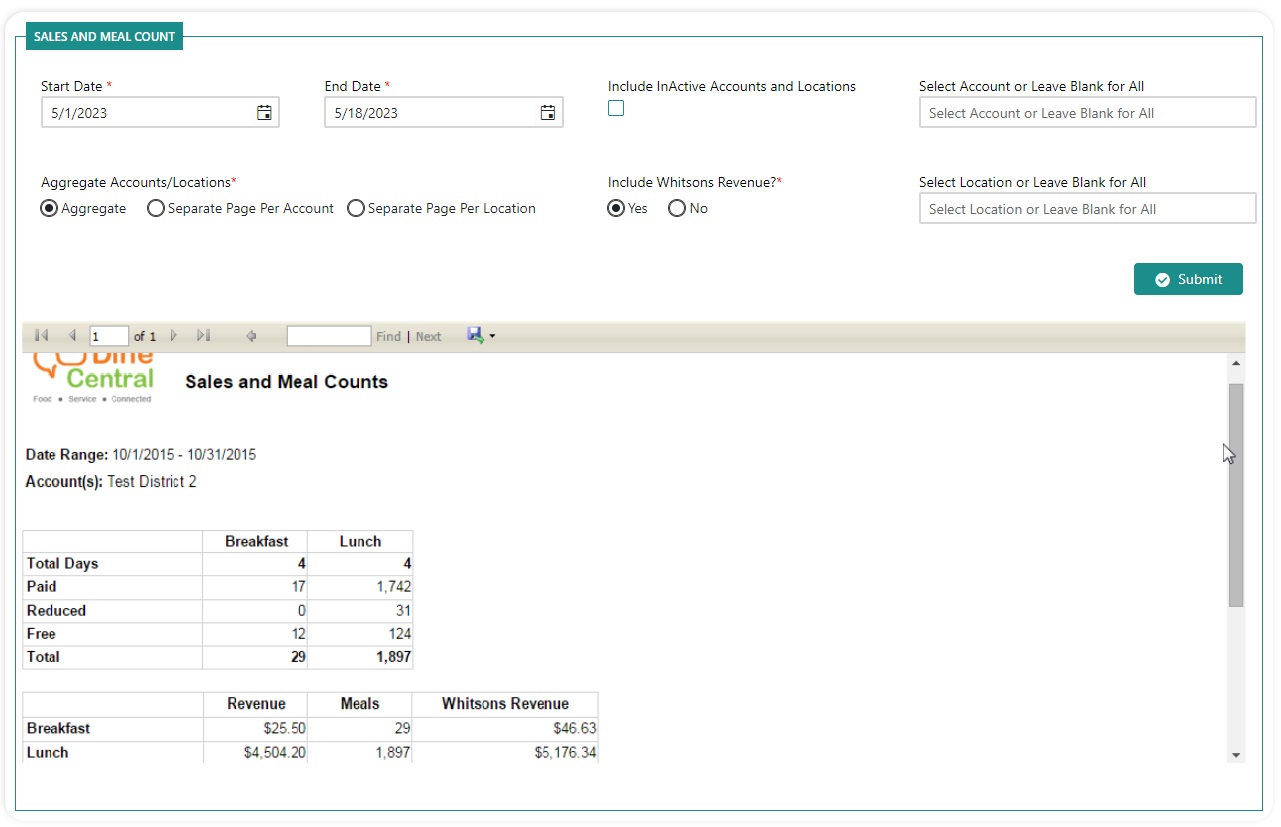
You can view the sales and meal counts at the district level using the Sales & Meal Count report.
NOTES:
The Aggregate option is used when you wish to consolidate or summarize the data in the report. For example, you may want to see the data for all of your locations rolled up as a summary into one report.
If the report shows an over/under amount, be sure to back that out before entering the data into Net Chef.
To view sales & meal count:
Click Revenue>Reports>Sales & Meal Count. You are prompted to input report parameters:

Choose the Start and End Date.
Choose a particular Location, if needed.
Indicate whether to Aggregate accounts to see a summary or separate pages for the Account or Location.
Choose whether to Include Whitsons Revenue.
Click Submit. The report results appear:
Catering Invoice
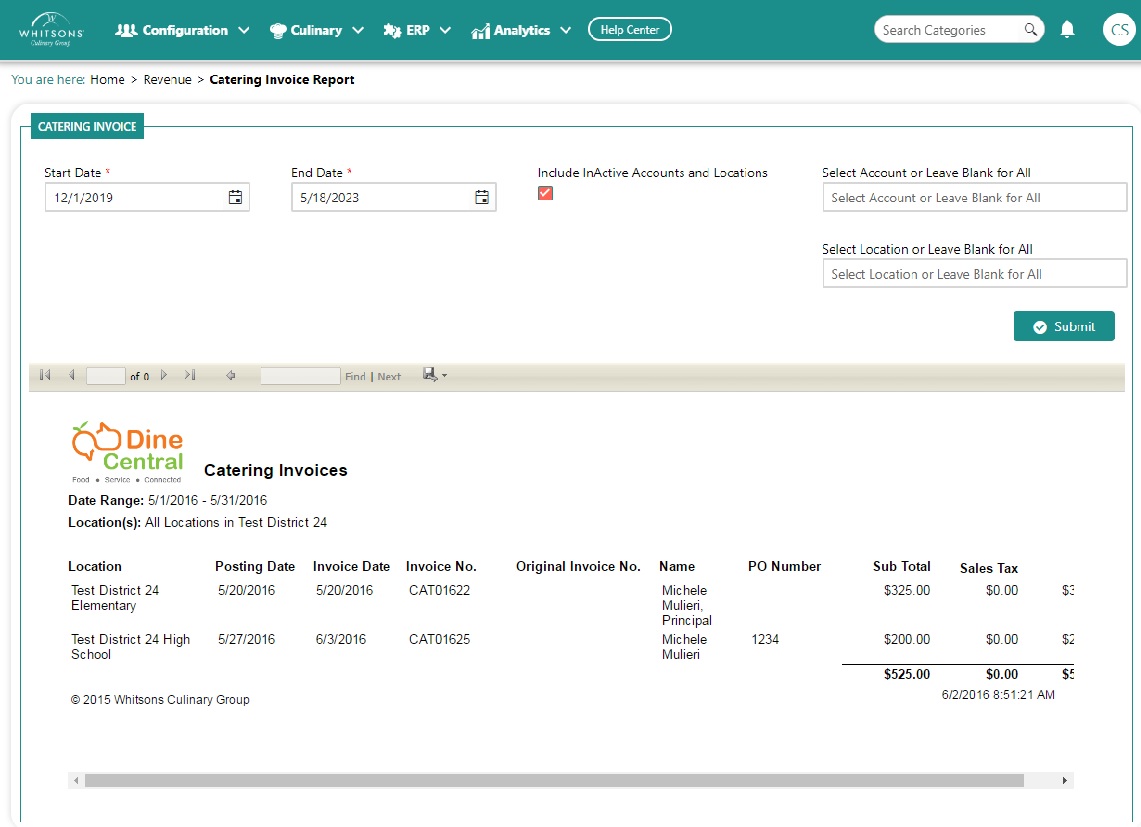
You can view a list of catering invoices that have been finalized using the Catering Invoice report.
To view catering invoices:
Click Revenue>Reports>Catering Invoice. You are prompted to input report parameters:

Choose the Start Date and End Date.
Choose a particular Account and Location, if needed.
Click Submit. The report results appear:
POS Reconciliation Summary
You can view a list of POS reconciliation summaries using the Reconciliation Summary report.
To view POS Reconciliation summaries