Reorder Category Groupings
You can setup the order in which each group, category and category/charge/tender type combination displays on the Data Entry Summary screen to match the order of your POS reports which are used to generate the information that needs to be entered on that screen. Once saved, the new order becomes the default setting for that account.
To reorder category groupings:
Click Revenue> Category Grouping from the left navigation. The Category Grouping screen appears.
Choose an Account Name from the drop-down. The categories for that account appear in yellow:
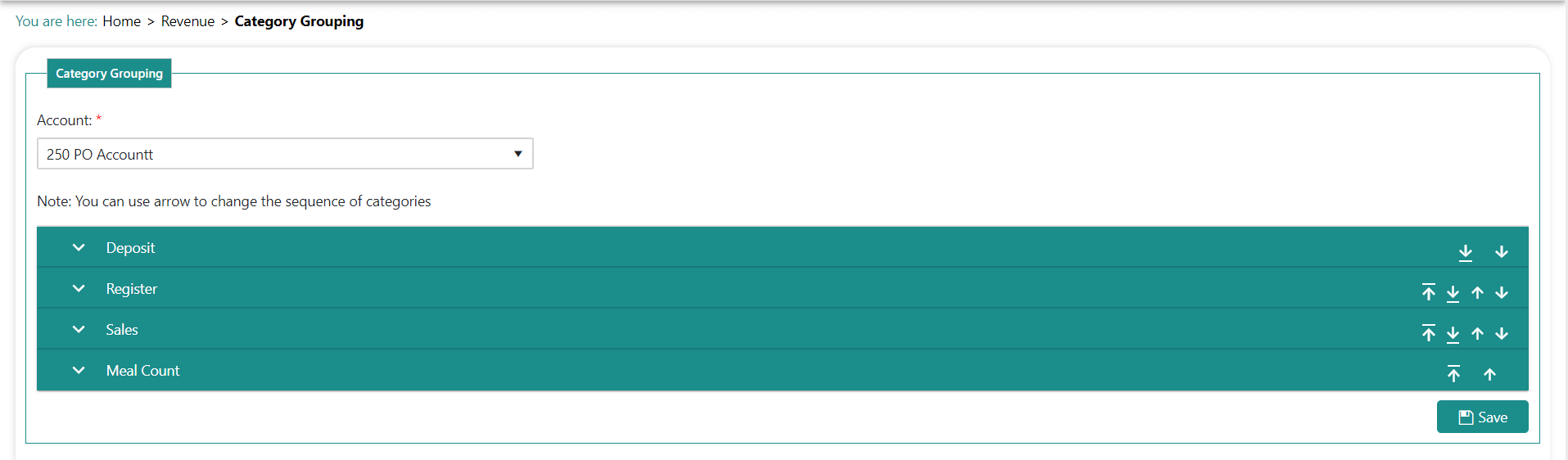
Re-arrange the main categories as needed (in yellow).
a. Click on the works of the category and drag and drop it onto the words of the main category you wish to move it to.
Click Save.
Click the triangle to the left of the category name to view the order of the sub-categories within.
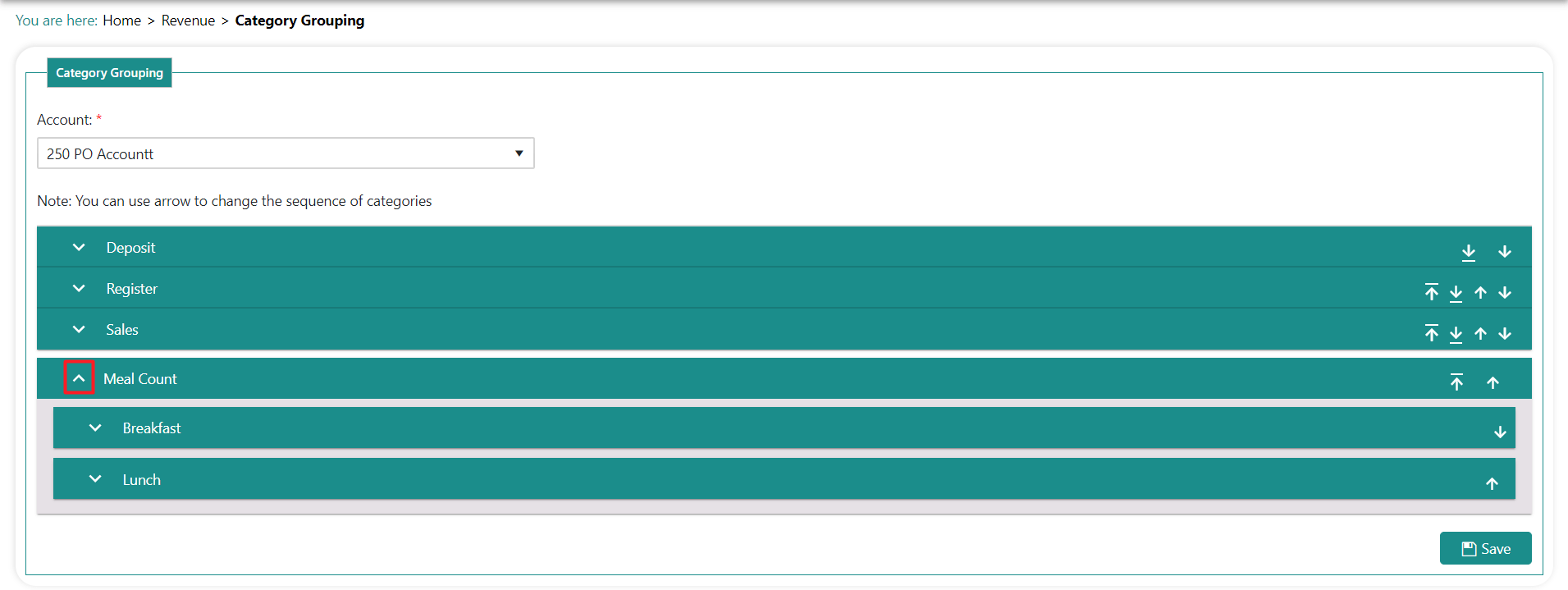
Click the arrows to the right of each sub category to re-arrange the order as needed.
Click Save.
Click the triangle next to the left of the sub-category to view the items within:
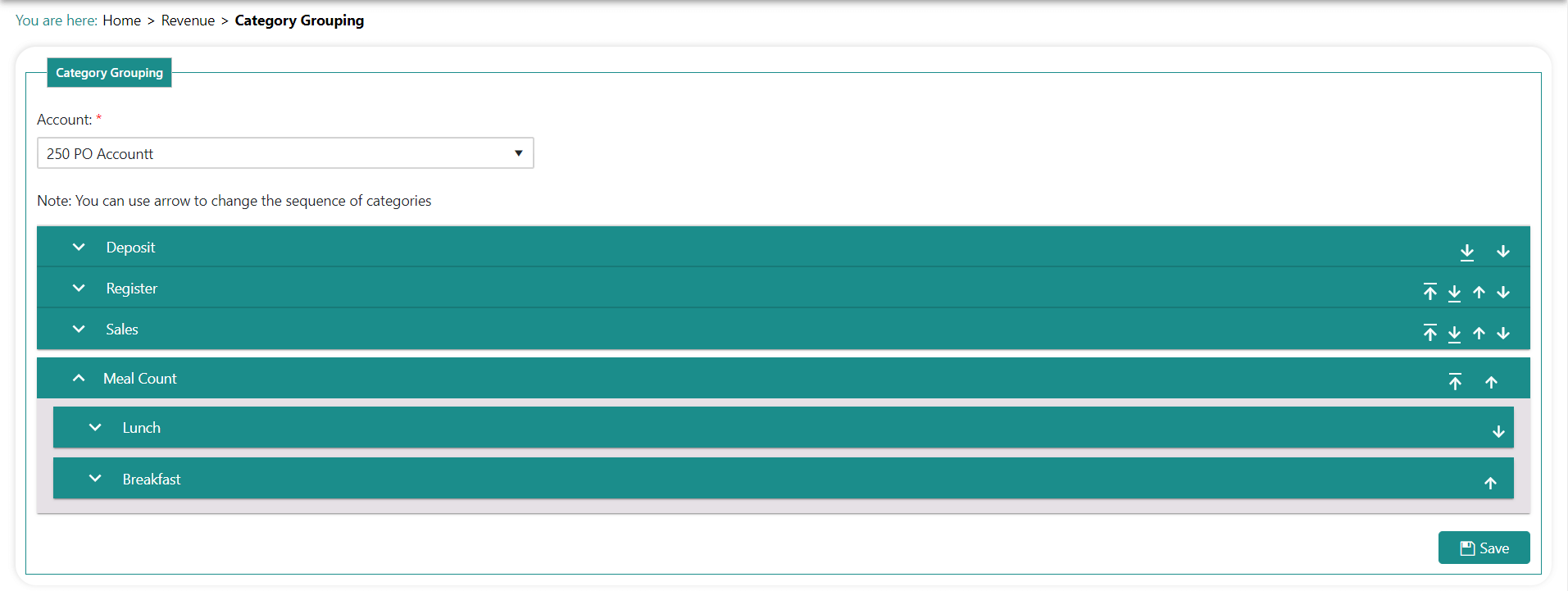
Click the arrow to the right of each item to re-arrange the order as needed.
Click Save.