Enter Deposits
Deposit amounts must be entered into Dine Central using the Deposit Verification screen. After you enter the deposit value, the system verifies it against what was entered on the Daily Data Entry screen. If there is a discrepancy, the system uses the value that is entered on the Deposit Verification screen to calculate the over/short amount for the day.
Note: If you do not receive verified deposit tickets, you must notify the Accounting team so they can turn off this requirement for that account/location.
To enter deposits:
Click Revenue> Deposit Verification from the left navigation. The Deposit Verification screen appears.
Choose the Account and From Date. Data for that account appears:
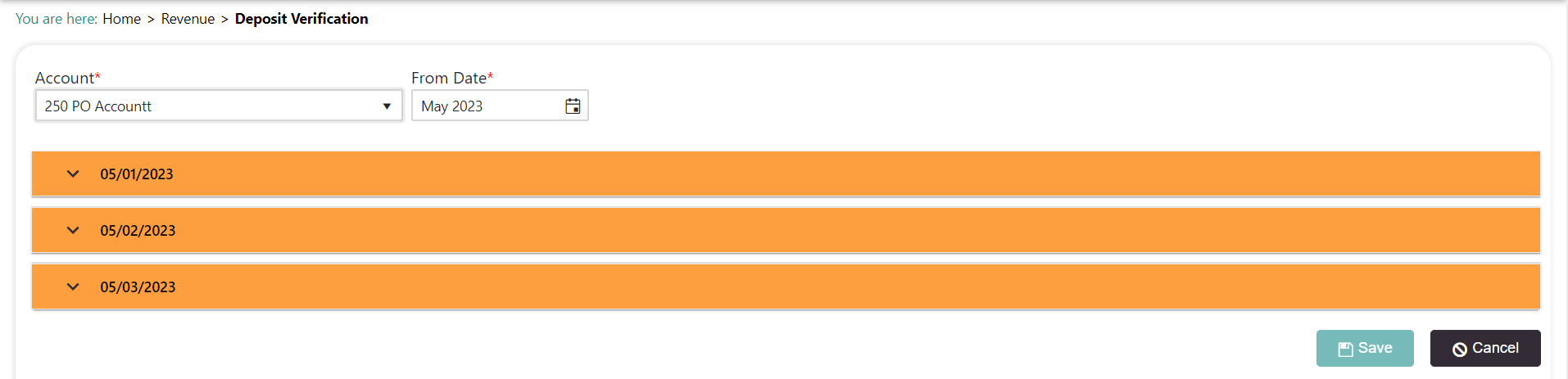
Drill down on the date to the school you want to enter a deposit for.
Enter the Deposit Slip Number and Amount for the deposit made.
Click Save. If the deposits entered
a. Match those on the Daily Data Entry screen, the system displays it in green.
b. DO NOT match what was entered on the Daily Data Entry screen the system will use the value entered here as the final value. The system uses the School Lunch Deposit value from this screen to calculate the over/short amount.
Repeat steps 2-5 for each deposit.