Order Guide Change Request: Adding or Removing Items
Procurement has set up the order guides and assigned the order guides to the respective accounts.
The Order Guide Change Request allows the GM to request the addition of items or removal of unwanted items to their Order Guide and/or Physical Inventory.
Any requests for new items are approved by Procurement. Procurement will receive notification of the Order Guide Change Request via DineCentral. The request must be made via DineCentral.
If for any reason the items that you need to add do not appear in the Change Request transaction, request via Salesforce.
Any new items to be added MUST be approved by Procurement. Procurement will get notification of the order guide change request via DineCentral.
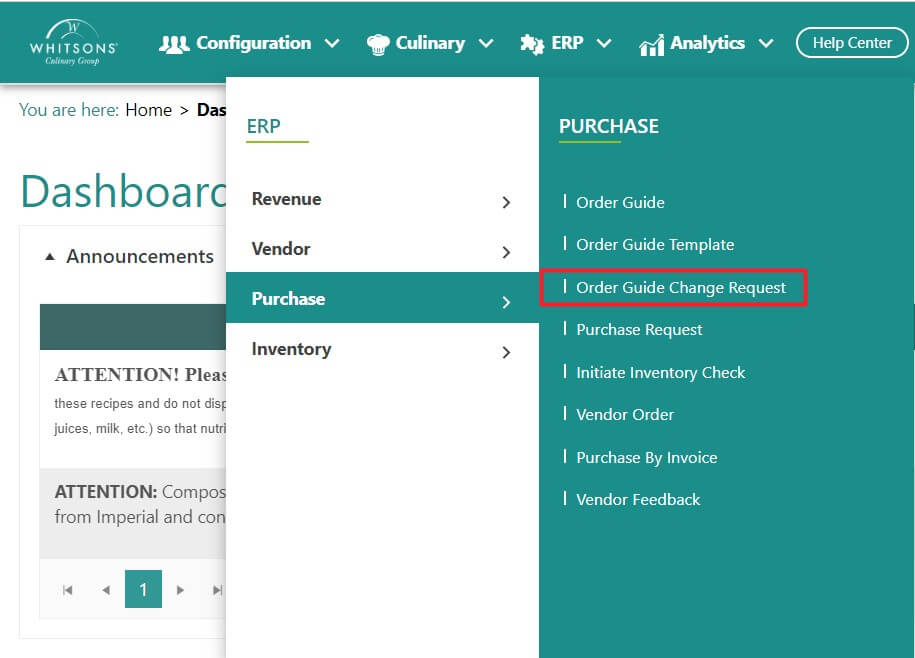
Hover over ERP on the navigation menu. Select Purchase. The Purchase Icon expands to display sub-function list.
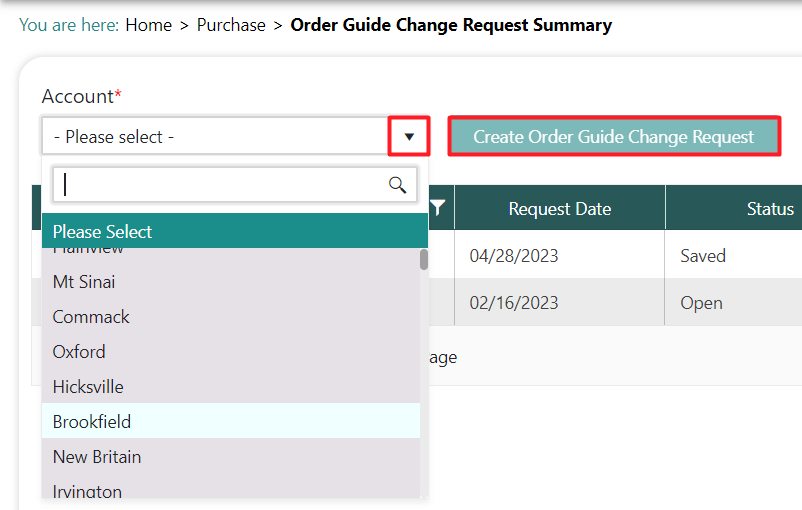
Select the Account from the drop down list. Click Create Order Guide Change Request.
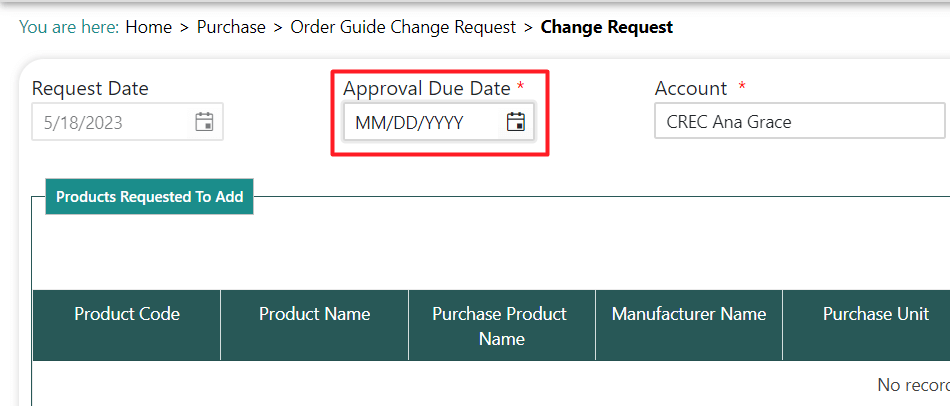
Specify the approval due date as today or a future date based on necessity.
To request a product added or removed, click on the "+ Add Product" button in either the Add Product or Remove Product section. The Select Products window will appear. Click the filter bars next to Product Code, Product Name, Product Category, or Manufacturer to filter results. After products are selected, click Add.
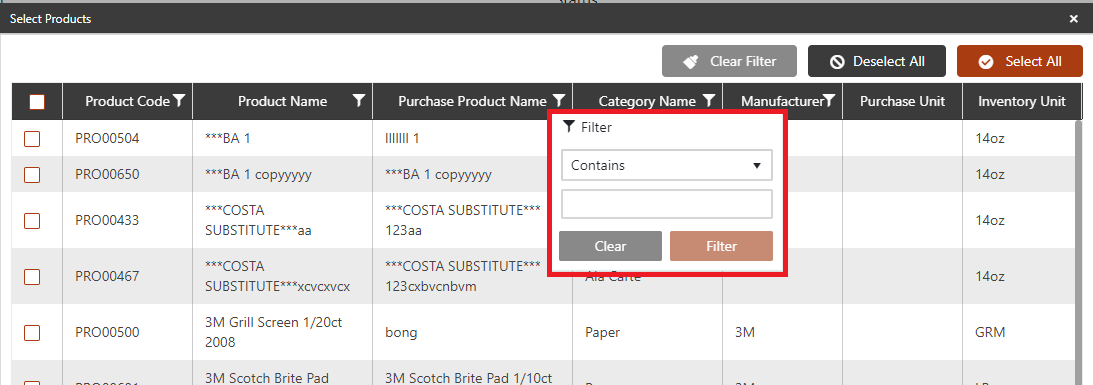
After including all of the products to be added or removed on the Change Request screen, select that item, click Add, then click Save; and Submit.
For add requests, Procurement will receive a notification to approve the request.
Access Purchase Order History
The user will create a purchase order to place orders from their account's Order Guide in DineCentral.
To view the Vendor Order Summary Screen
Hover over ERP. Select Purchase. An expanded list of functions opens to the right. Select Vendor Order.
The Vendor Order Summary screen appears. From this screen:
View a previous order or invoice
Copy and edit a previous order
Reconcile a previous order
Create a new PO
NOTE: To improve performance on the PBI summary screen we are automatically only going to show PBIs
which are NOT yet posted. You will still be able to view the PBIs that have been Posted. If you wish to view
them, click on the checkbox "Show posted records" on the top right side of the screen. Clicking this
checkbox will make all of your posted PBIs visible to you