Overview
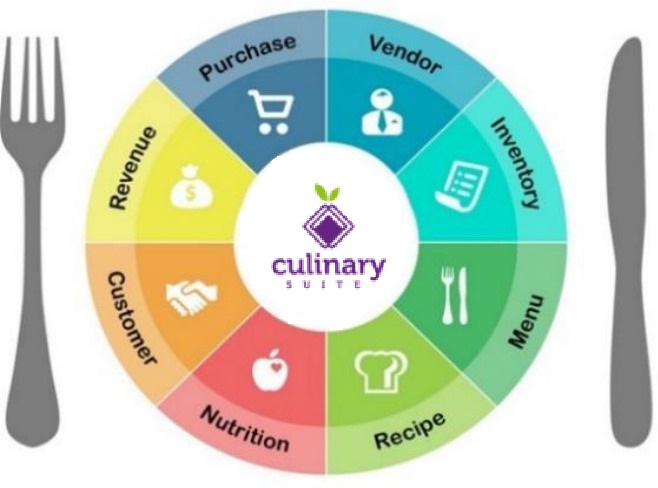 | The Inventory module supports day-to-day functions as well as forecasting and cost management. Inventory processes include:
|
Keep in Mind:
Inventory must be performed timely
Inventory in DineCentral is done once a month, at month end. You will not perform weekly inventory counts unless you are directed to by either your District Manager, VP or Kelly Friend, COO of Contract Management. Accounts that will be alerted to perform weekly inventory counts may vary. If performing Weekly Physical Inventory Counts, enter the count each Friday during the course of the month, finishing no later than Monday (Again, only if directed to by your District Manager, VP or Kelly Friend, COO of Contract Management).
Inventory is performed on the district/account level, not the school level
All brown box government commodities are in the inventory guide
By default, the items that will appear to be counted are those which appeared in your purchases during the course of the month + any items that you counted as part of your last month's inventory. If an item is not appearing, you can add it by clicking on the Add Product button on the top right side of the screen.
Five Step High Level Procedure:
Generate Inventory count sheets in either PDF or Excel
Count the inventory at all of the different locations and combine counts so you have 1 grand total of each product
Enter the counts completely in the Inventory Count Screen
Generate the Inventory Extended Value Report in pdf format from the Review screen
Send Inventory Extended Report in PDF format to the Accounting department
If you see any product showing $ zero dollars, please open a help desk ticket.
Government Item price:
- As soon as you enter the count and click next to navigate to the Count review screen, you will see the government price appearing.
Please Note: If you notice items which are appearing with zero dollars, it either means a) you have counted the wrong item which shouldn't have been counted or b) you counted the correct item and the system really does not have the price for it. In the latter case, please raise a helpdesk ticket so that we can get this corrected from the Purchasing department.